Processes and Jobs
You can use the RDMS Web interface to view the status of processes and jobs that you started through the Web interface. Select the "Processes/jobs" icon in the main menu on the left to open this view.
You can also use this view to check the status of your delayed rules. The "Delayed Rules" section below explains this concept.
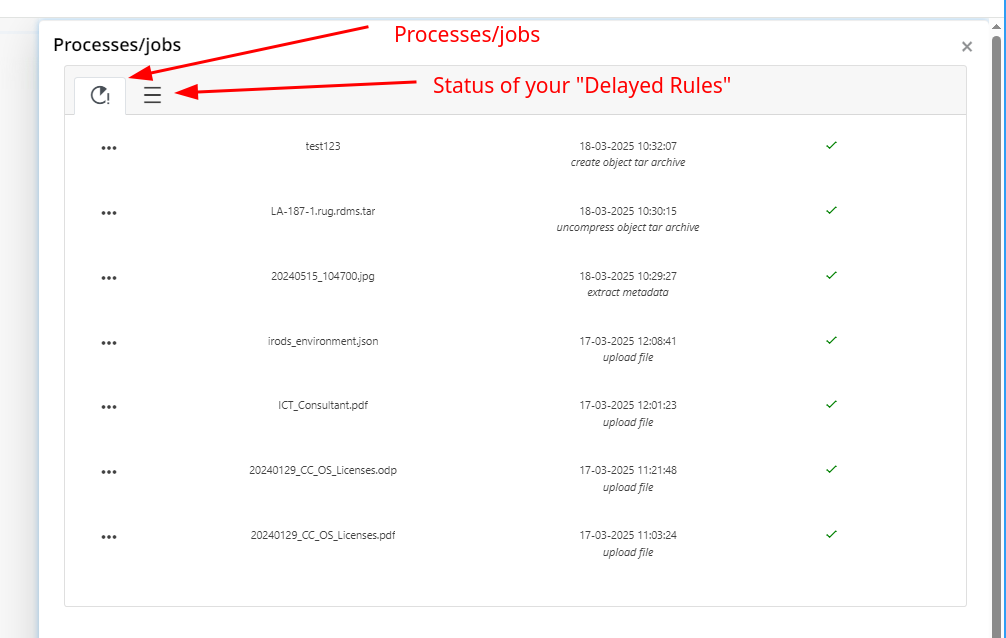
Processes and Jobs in the Web Interface
When you perform certain operations through the RDMS Web interface, the RDMS registers them as processes. You can use the "Processes/jobs" view to check their status.
The following operations are currently displayed as processes:
- Uploading files through the Web interface
- Compressing folders into tar archives and extracting tar archives
- Extracting metadata
- Performing steps in the Archiving Workflow
Select a process to view more information about it, as shown below.
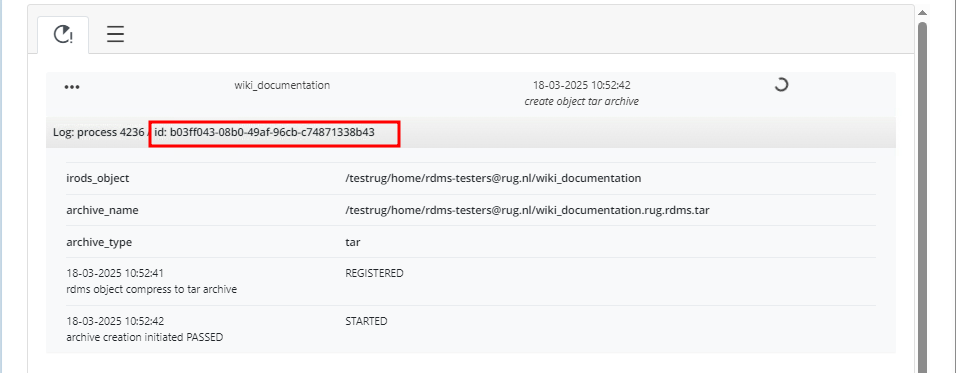
The process details show information such as the type of process and the files or folders on which it was performed. Each process has both an "RDMS process ID" and an "ID". When applicable, you can use the "RDMS process ID" to match the process to the corresponding delayed rule.
Note: The RDMS does not execute every process as a delayed rule. For example, uploading a file is not a delayed rule. However, the checksum calculation that starts after the upload runs as a delayed rule in the background.
Delayed Rules
The RDMS is built on the iRODS data-management software. iRODS can automatically perform tasks when specific events occur in the system. These automated tasks are called rules.
The RDMS can queue a rule and execute it in the background at a later time, even after you have logged out. This type of rule is called a delayed rule.
The RDMS uses delayed rules for several operations, including:
- Calculating checksums automatically: When you upload files to the RDMS, the system calculates their checksums by using a delayed rule. The registered checksums allow you and the RDMS administrators to verify the integrity of your data.
- Compressing and extracting files through the Web interface: When you compress a folder into a tar archive or extract a tar archive, the RDMS performs the operation as a delayed rule.
To view your delayed rules, select the second tab in the "Processes/jobs" view.
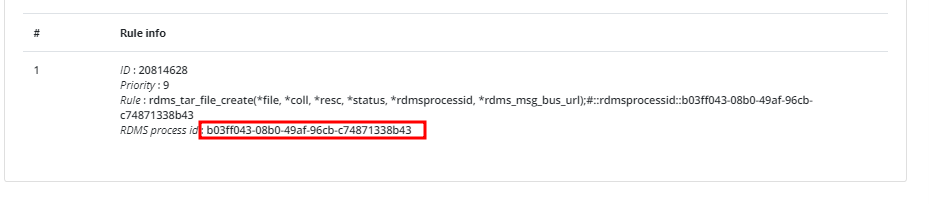
Each delayed rule displays its "RDMS process ID". You can use this value to match the delayed rule to the corresponding process or job. The "ID" is a separate identifier shown in the Web interface.
In the examples above, the delayed rule and its related job have the same "RDMS process ID".
The example below shows a delayed rule for creating a tar archive. The rule details include its assigned priority. The RDMS uses the following priority levels to determine queue preference:
- Priority 9: Rules with high queue priority
- Priority 5: Rules with medium queue priority
- Priority 1: Rules with low queue priority, such as checksum calculations
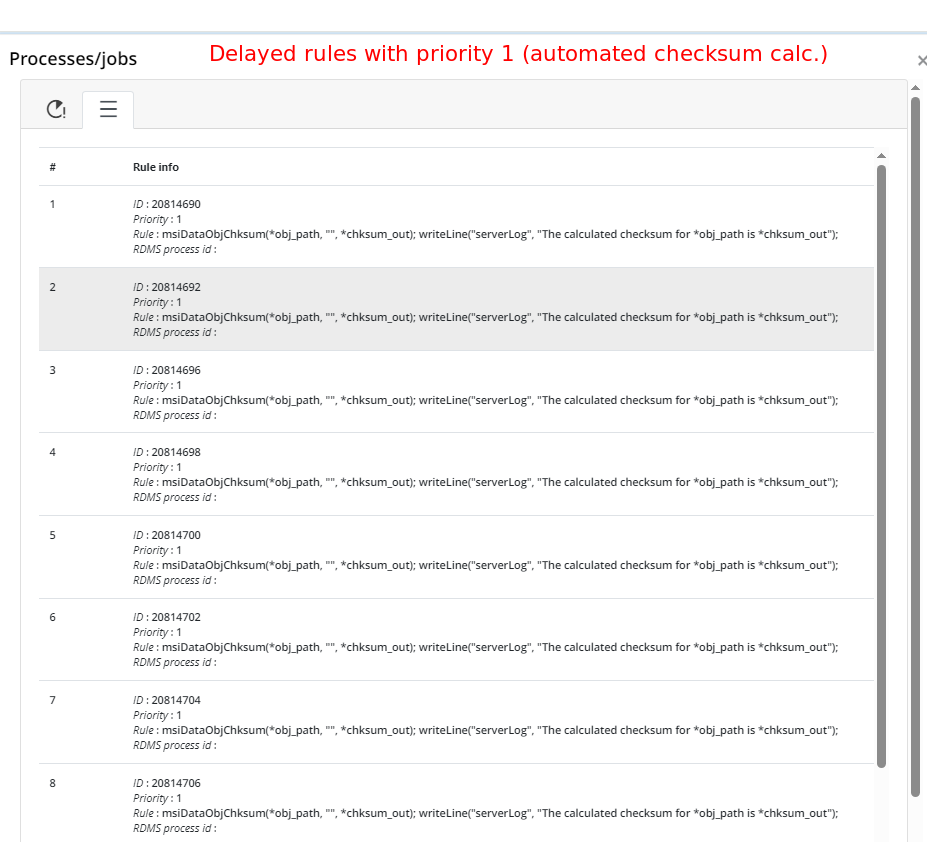
The priority system allows critical tasks, manually started tasks, and tasks that are part of an RDMS workflow to receive a higher queue preference than common, automatically scheduled tasks.
For example, the RDMS must calculate a checksum after you upload a file. However, this calculation should not delay an Archiving Workflow. The RDMS therefore assigns checksum calculations a lower queue priority, allowing higher-priority operations to be processed first when resources are available.
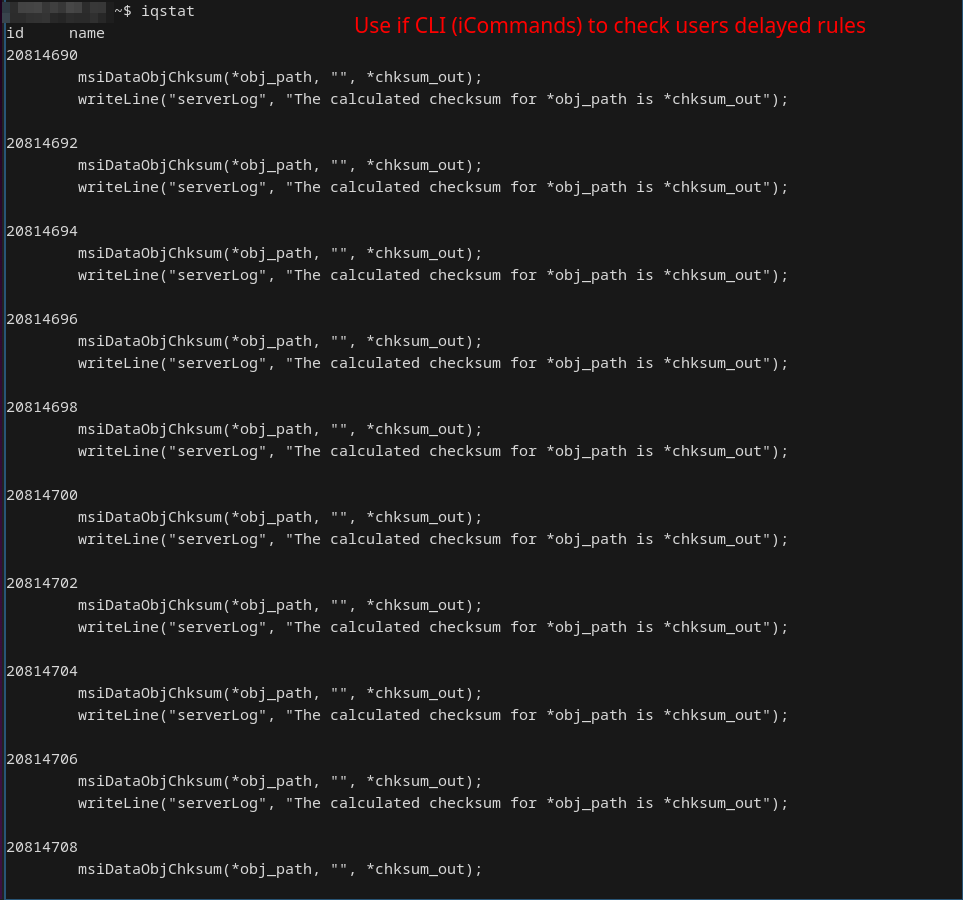
You can also check the status of delayed rules through the command-line interface (CLI). Use the iqstat command in iCommands to display your delayed rules that are waiting to run.