This is an old revision of the document!
Overview
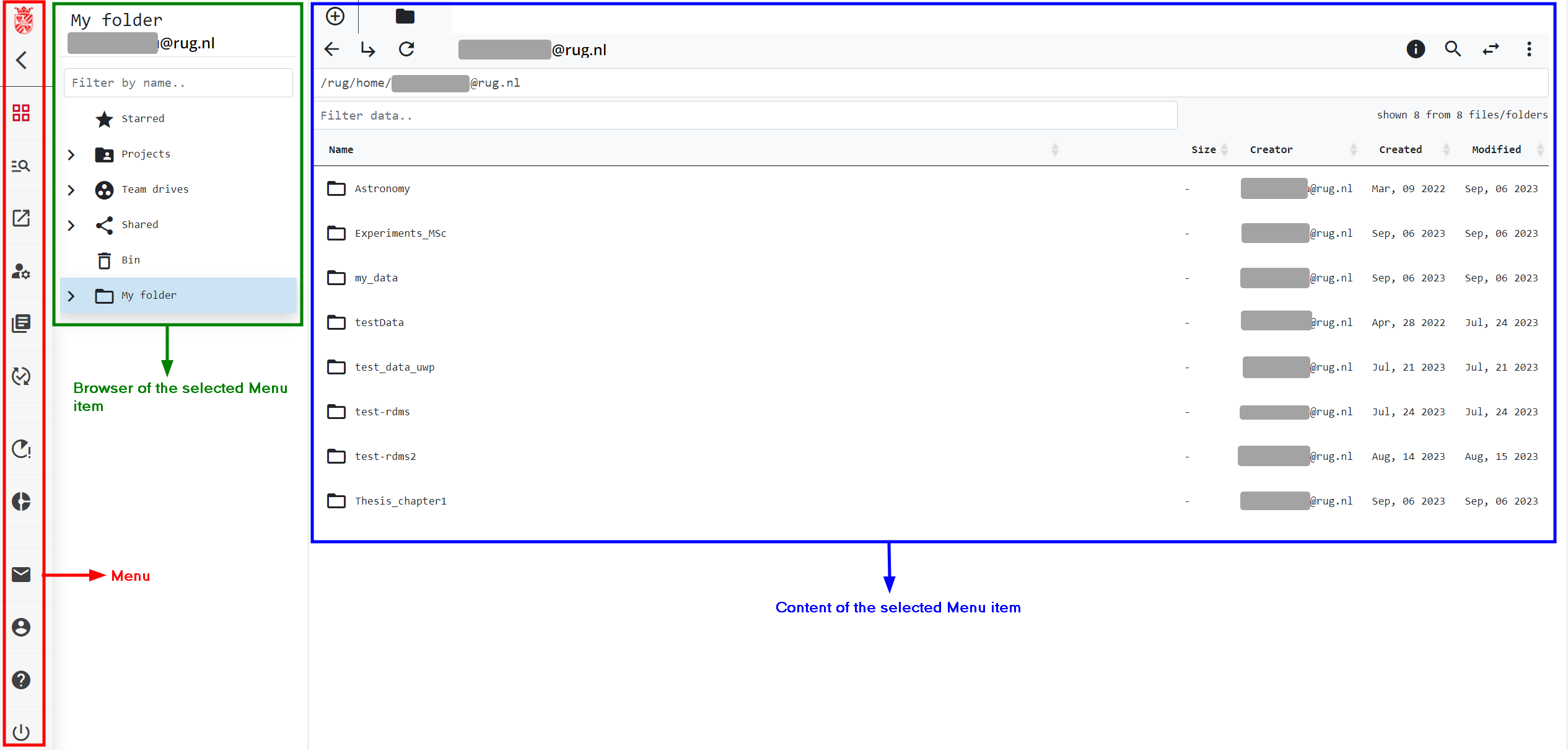
The landing page of the RDMS Web interface contains three main sections: the navigation menu, the directory browser, and the content area. Hover over the  button in the menu bar to view the menu items available to you. Select a menu icon to open the corresponding browser and content page. By default, the Web interface opens the "Data Browser" for all users (see the figure above).
The green box in the figure above marks the directory browser. It provides quick access to your files and folders in the RDMS. Use the  and
and  buttons in the menu bar to show or hide the directory browser. Depending on your permissions, you may not see entries under "Projects" and "Team Drives". For information about gaining access to these environments, see RDMS Team Drives and RDMS Projects and Archives.
To the right of the directory browser, you will find the area that shows the content of the currently selected section of the RDMS. For example, if you select "My folder", you will see the content of your personal home folder. Next to the data in the selected location, you can use the  button to reveal/hide further information and options.
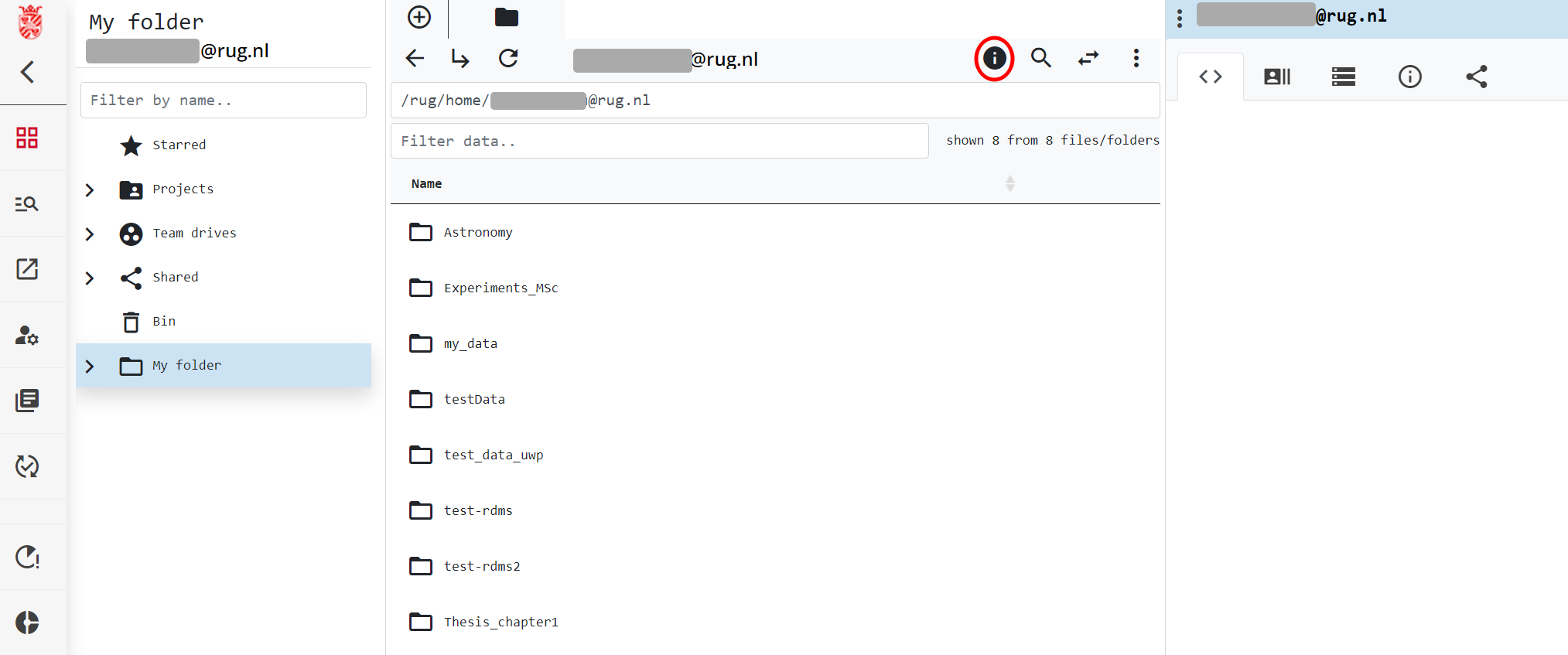
Among other things, this window can be used to display general information about the selected data, to see and modify associated metadata, to display info on currently set permissions, and to share data with other RDMS users. The button highlighted in the figure below will show information on the current directory, while selecting the button to the side of a folder or file name will display information on the selected file or folder.
button to reveal/hide further information and options.
Among other things, this window can be used to display general information about the selected data, to see and modify associated metadata, to display info on currently set permissions, and to share data with other RDMS users. The button highlighted in the figure below will show information on the current directory, while selecting the button to the side of a folder or file name will display information on the selected file or folder.
For quick access to the explanation of the different menu items, please refer to the list below:
- Open Data Browser in a new tab
- Contact Support
- User Profile
- User Notifications
*: Item only available for users with elevated roles in the system.