This is an old revision of the document!
Data Management Tab
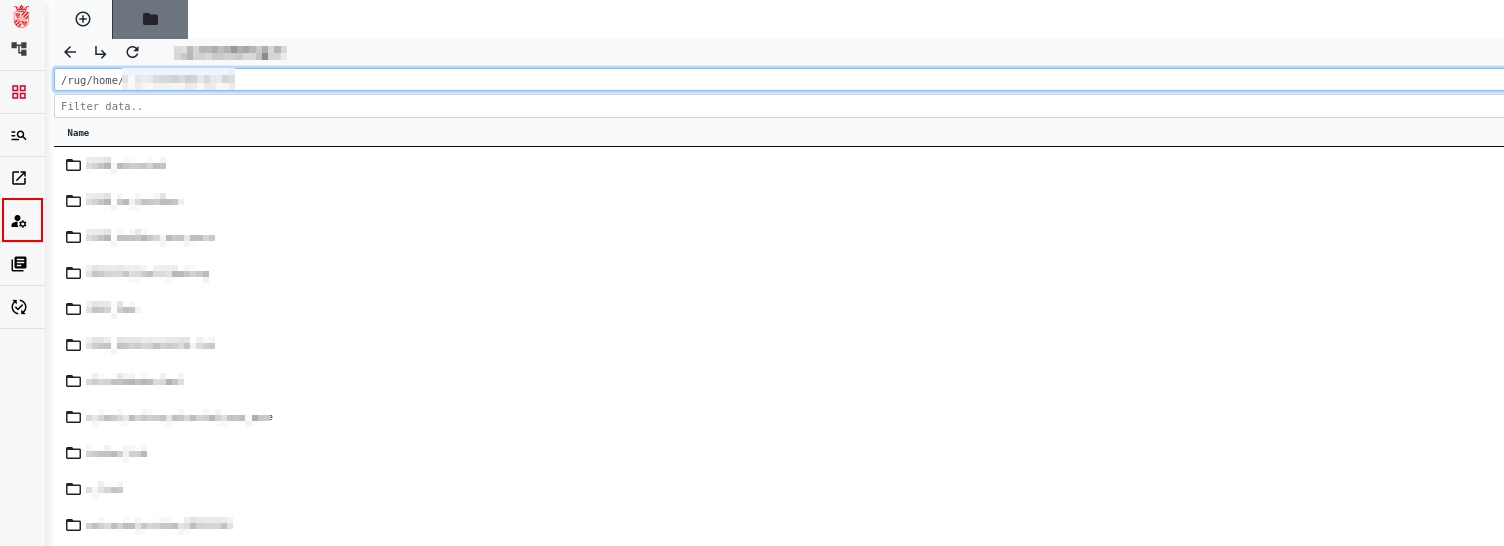
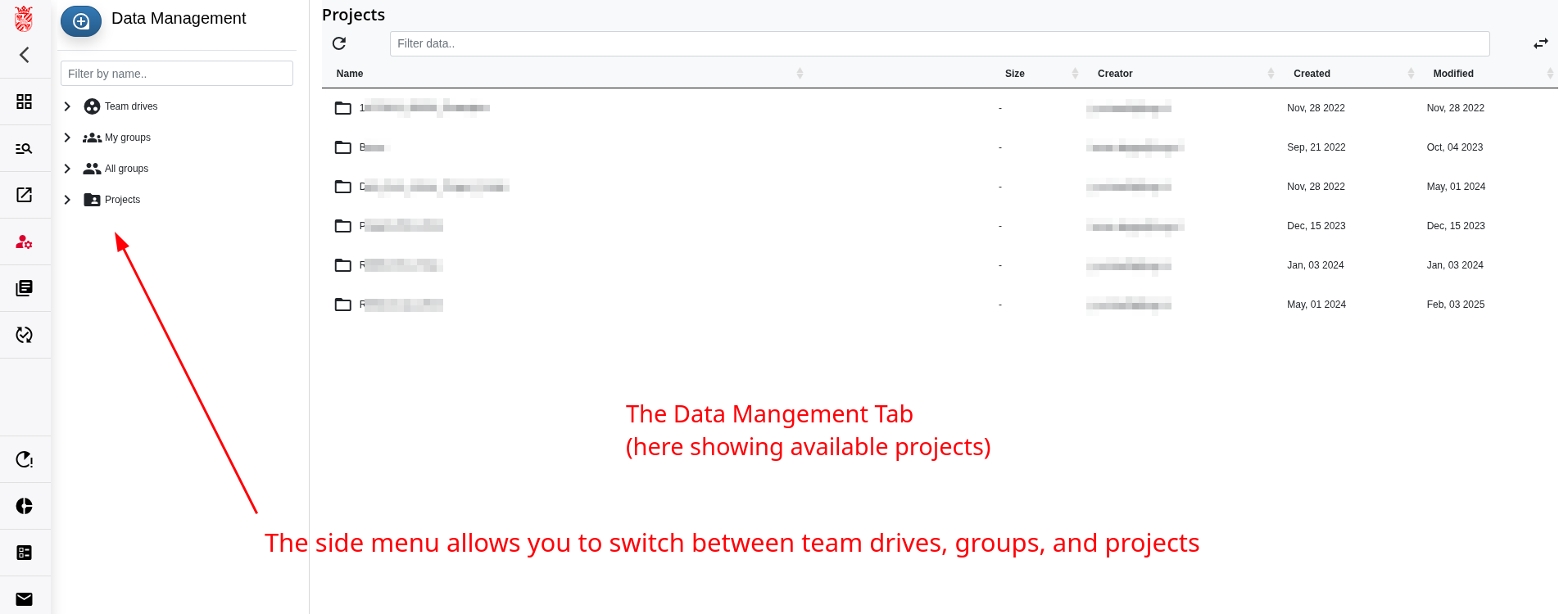
To manage your RDMS Groups, Team Drives, or RDMS Projects, select the  icon in the main menu on the left. This opens the "Data Management" tab, as shown below. If you do not see the data management icon, you do not have the required permissions. Contact rdms-support@rug.nl to request access.
The "Data Management" tab displays the RDMS Groups, Team Drives, and RDMS Projects that you have permission to manage.
You can also view the files and folders stored in Team Drives and RDMS Projects from this tab. However, we recommend using the Data Browser to browse and manage files and folders.
Team Drive Management
For information about managing RDMS Team Drives through the "Data Management" tab, see RDMS Team Drives.
Project Management
For information about managing RDMS Projects through the "Data Management" tab, see RDMS Projects and Archives.
Group Management
RDMS Groups allow you to manage multiple RDMS users as a single group. You can assign the same permissions to all group members instead of assigning permissions to each user individually.
For example, you can grant a group access to a folder or share files and folders with a group. For more information, see Sharing Files and Folders.
To create an RDMS Group:
- Open the "Data Management" tab.
- Select the
 button.
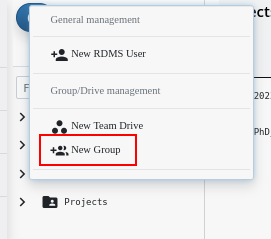
 - Select "New Group" from the menu.
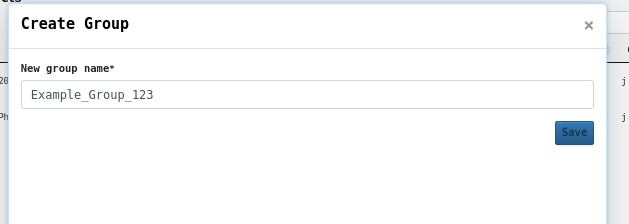
Enter a valid group name and select "Save". The new group initially contains one member: you.
The Web interface automatically opens the user overview for the new group. Use this overview to verify that the group contains your user account.
Note: If the group is empty, the creation process may have failed. Contact rdms-support@rug.nl for assistance.
You can also verify that the group was created successfully by checking whether it appears under "My groups" in the "Data Management" tab.
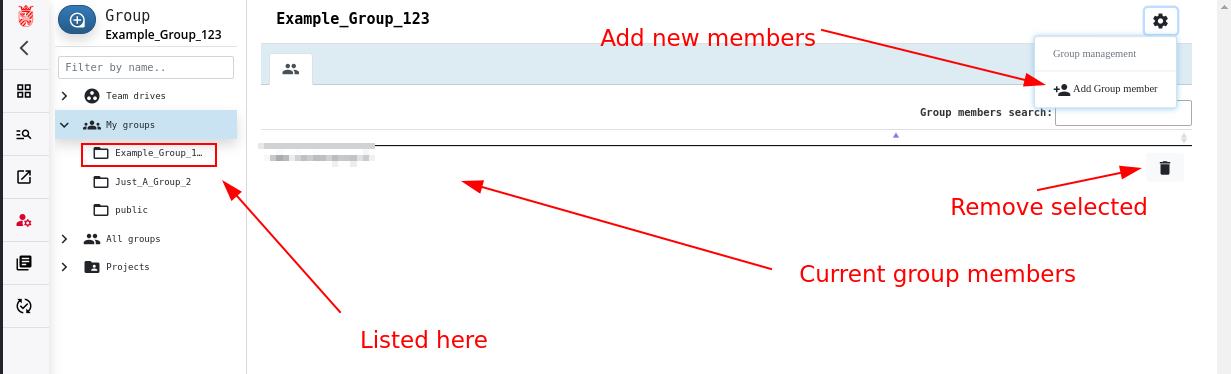
After you add users, this page displays all current members of the selected RDMS Group.
Adding and Removing Group Members
To add a user to an RDMS Group:
- Select the group in the "Data Management" tab.
- Select the
 button on the right side of the page.
 - Select "Add Group member".
- Select the user that you want to add.
To remove a user from an RDMS Group, select the  button next to the user's name.