This is an old revision of the document!
Data Browser
General
The "Data Browser" is the main area of the RDMS Web interface for navigating and managing your files and folders. It is displayed when you log in to the Web interface. You can access it at any time by selecting the  button in the navigation menu on the left.

In the Data Browser, use the  and
and  buttons in the navigation menu to hide or show the directory browser marked by the green box in the screenshot above. Select an icon in the directory browser to access the corresponding part of the RDMS:
- Starred (
 ): Contains the files and folders that you have marked with a star. Hover over or select a file or folder to display an empty star icon next to its name. Select the star to add the item to "Starred". Select the star again to remove the item. This feature provides quick access to frequently used files and folders.
 - Projects (
 ): Contains all the RDMS Projects that you can access. For more information, see RDMS Projects.
 - Team Drives (
 ): Contains all the RDMS Team Drives that you can access. For more information, see RDMS Team Drives.
 - Shared (
 ): Contains the RDMS locations that other users have shared with you. Use this overview to access shared locations quickly.
 - Bin (
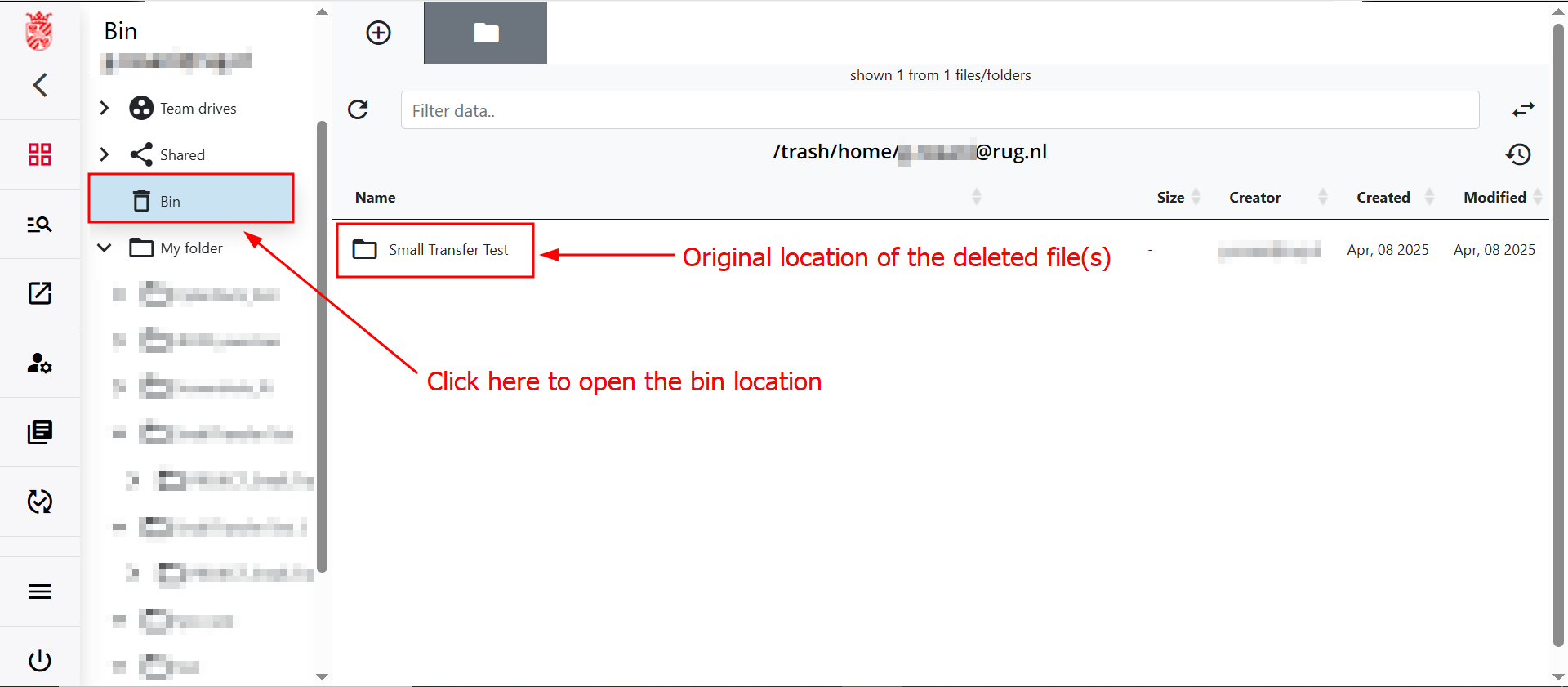
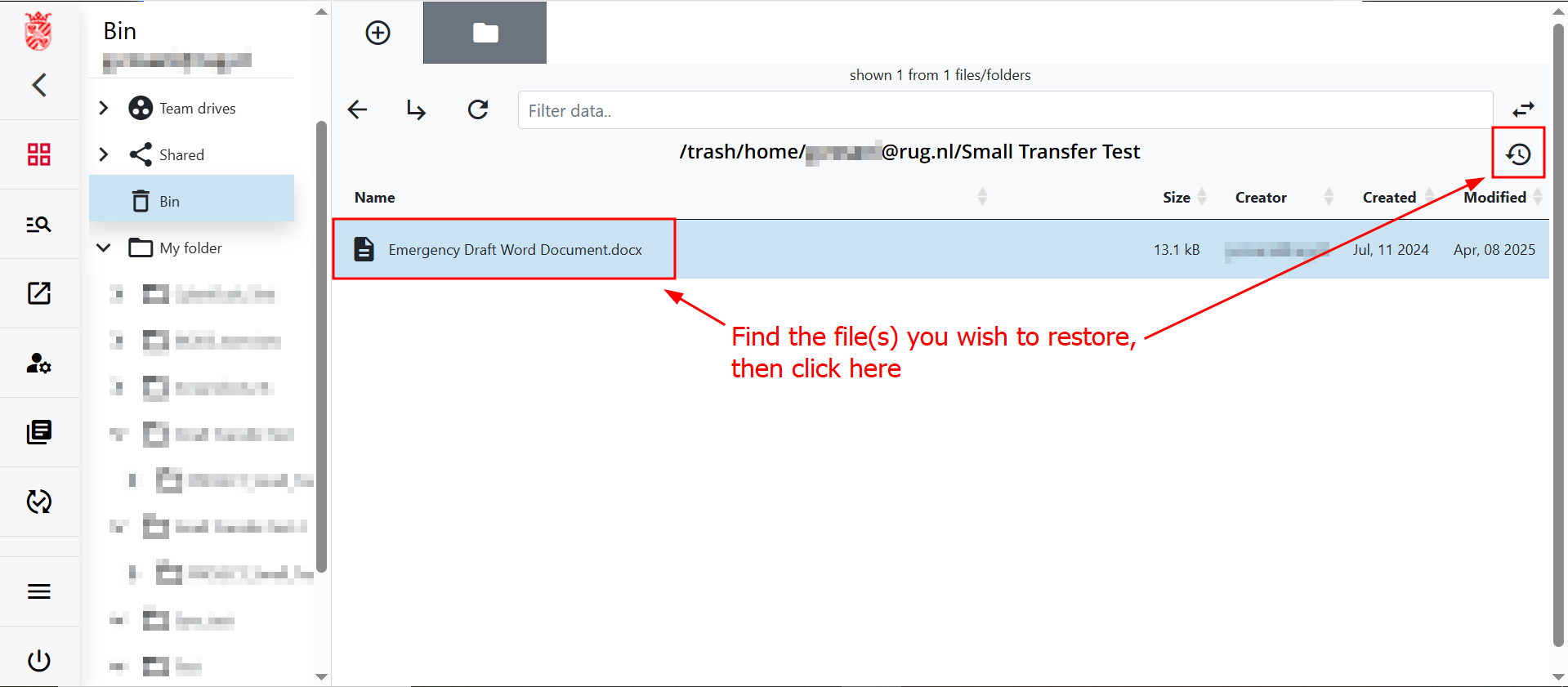
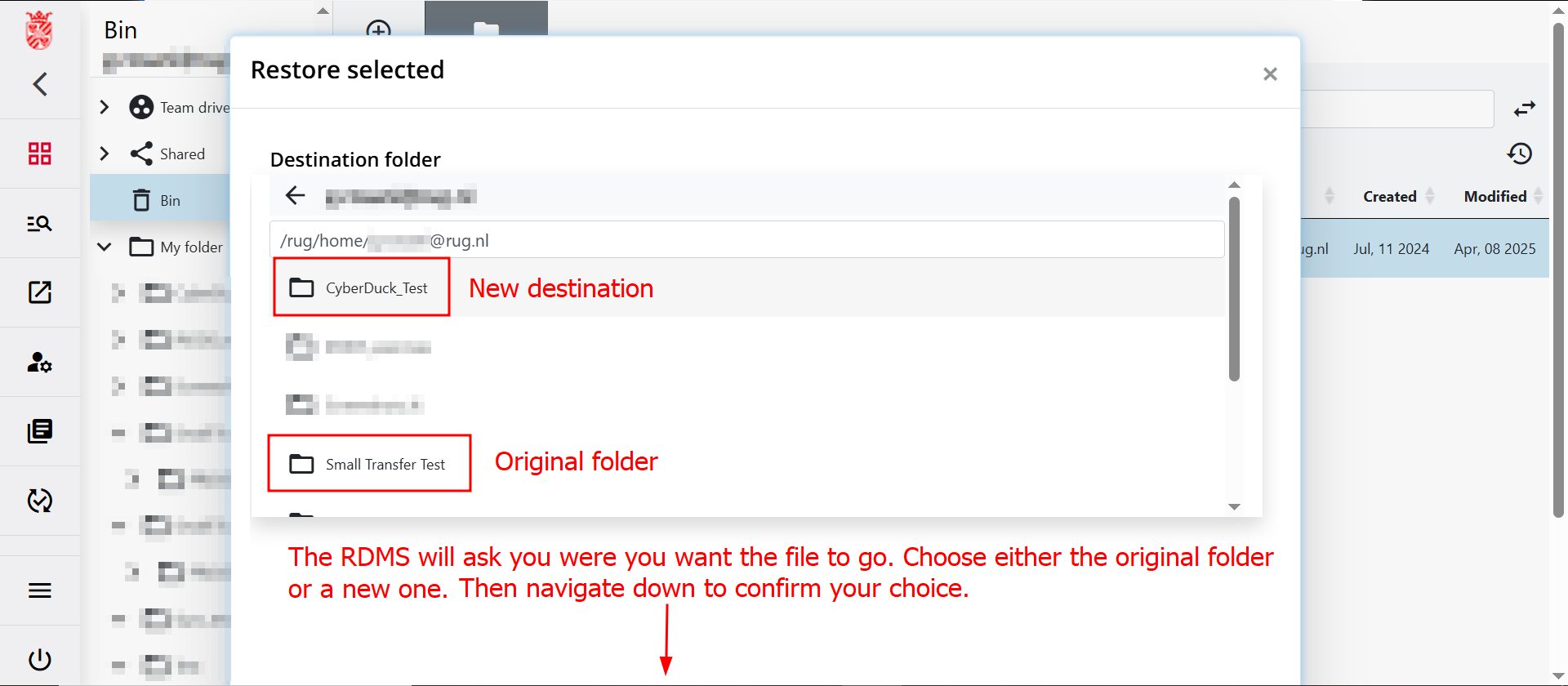
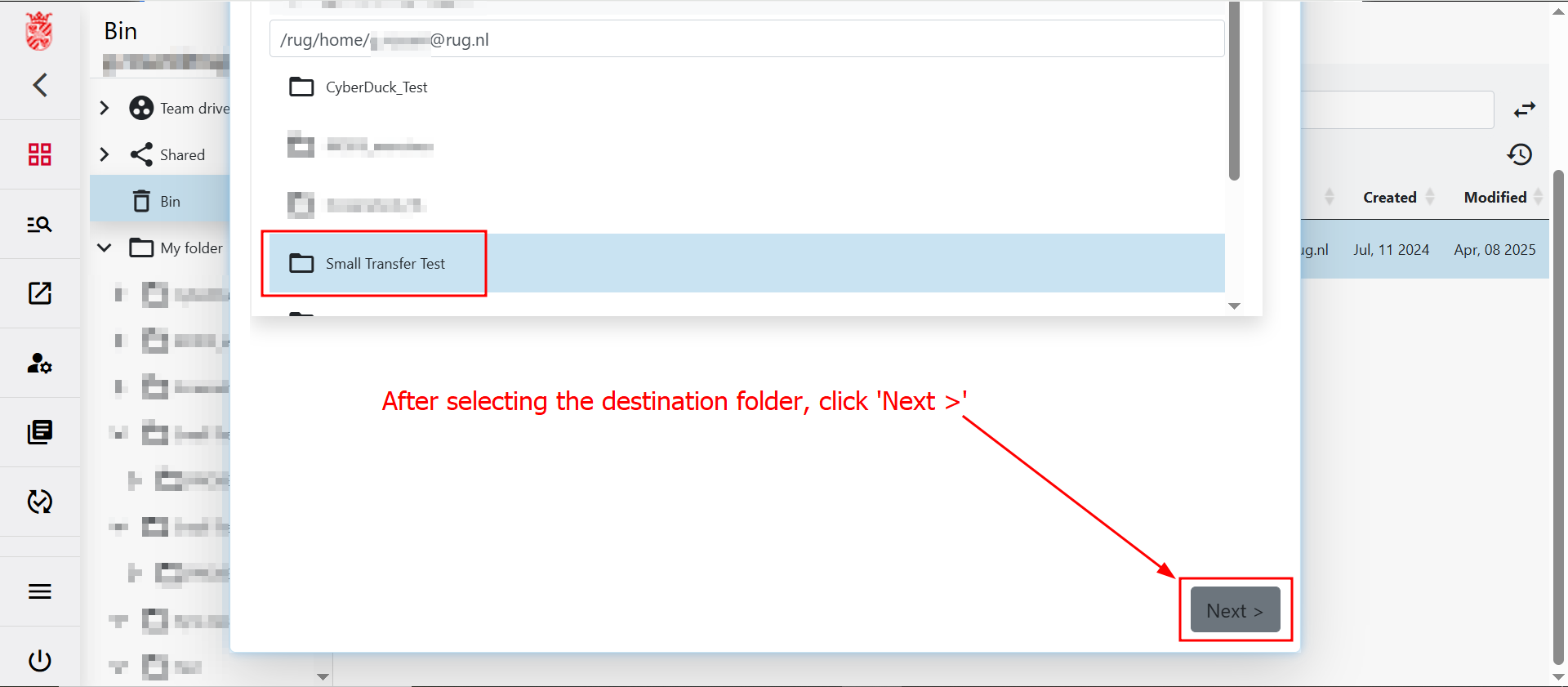
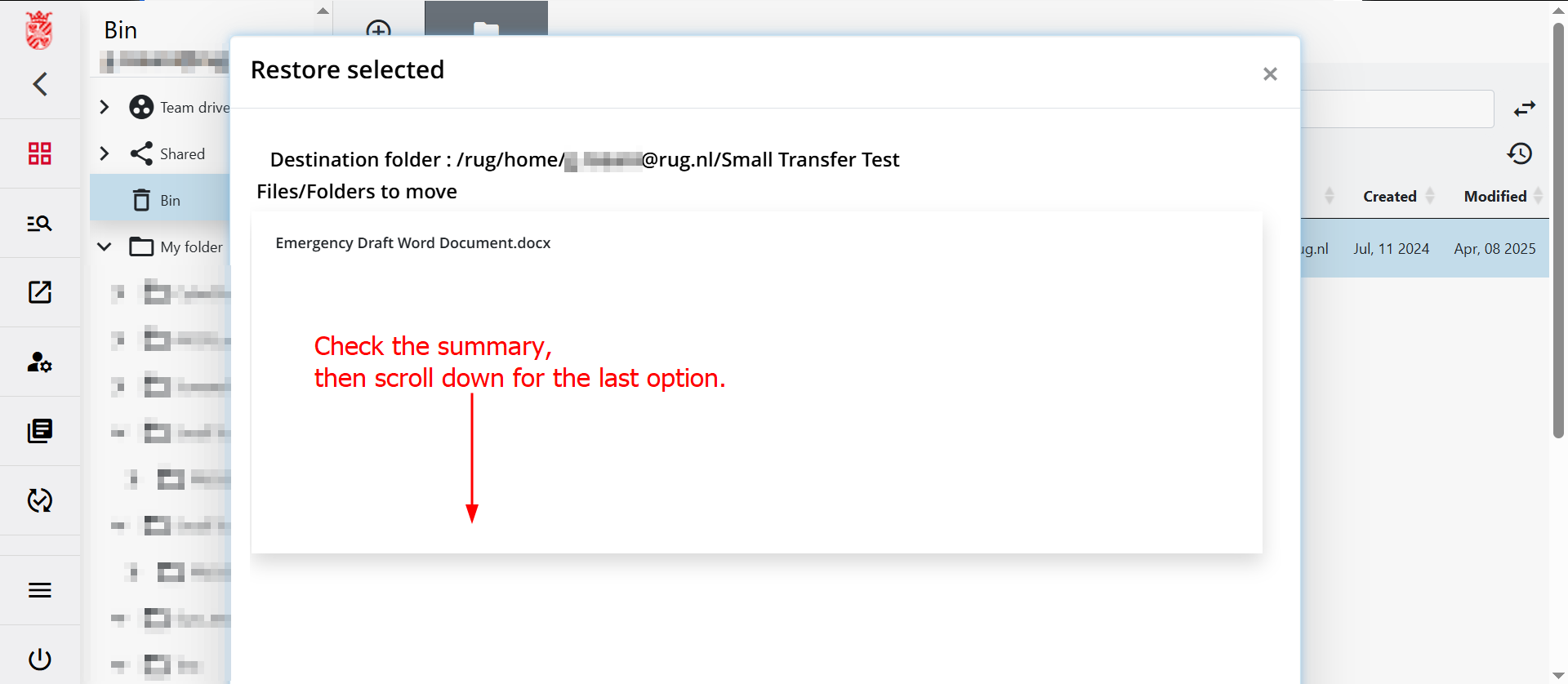
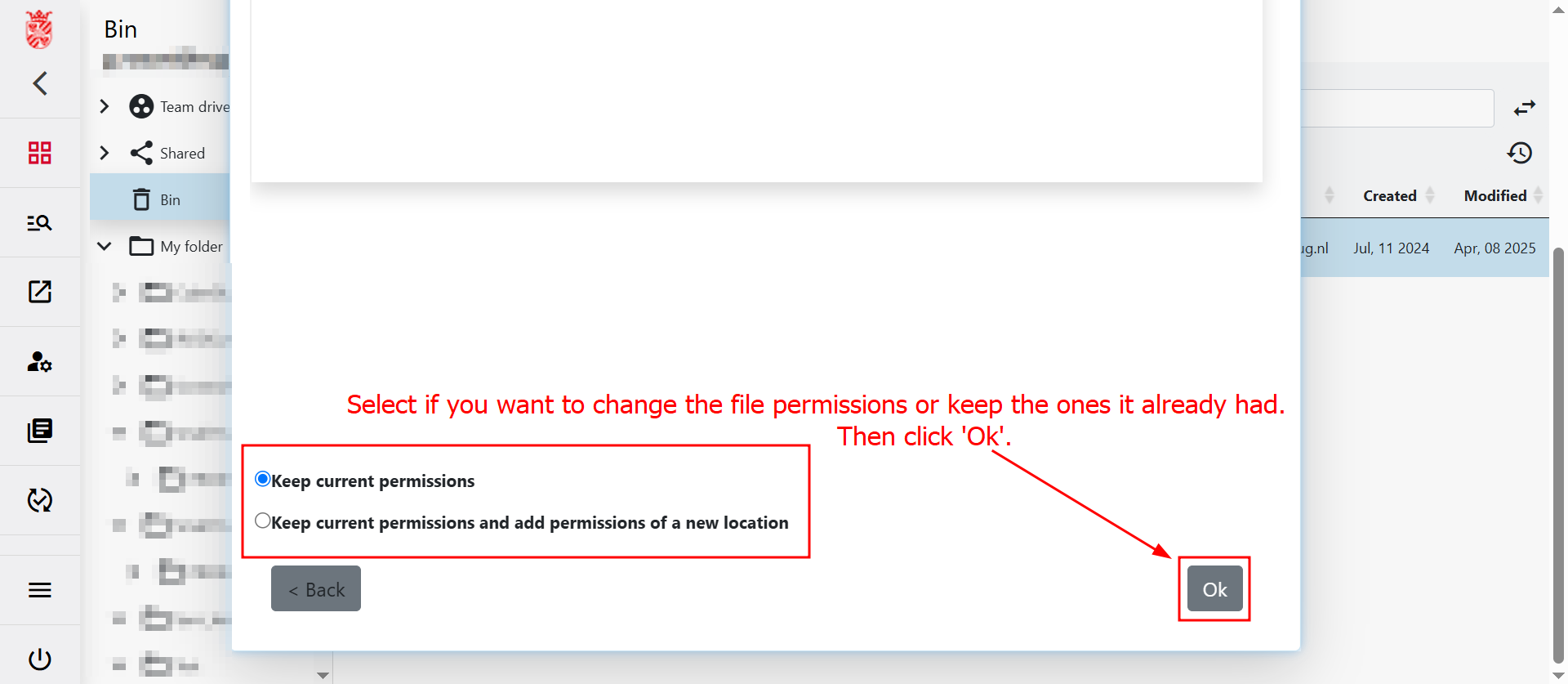
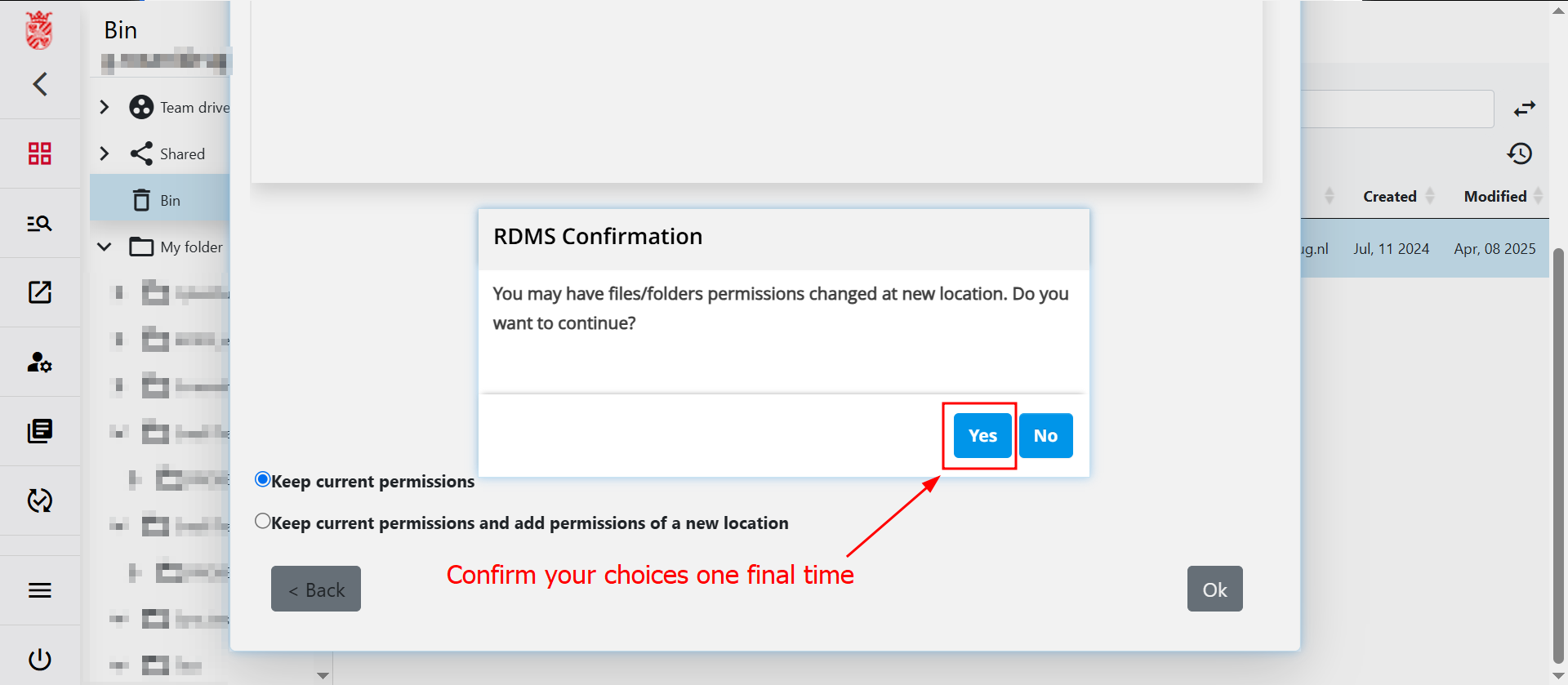
 ): Contains the files and folders that you have deleted. You can use the Web interface to restore these items. For instructions on restoring or permanently deleting files and folders, see How to Restore Deleted Files.
 - My folder (
 ): Opens your personal RDMS Home directory.


Data Browser Functions
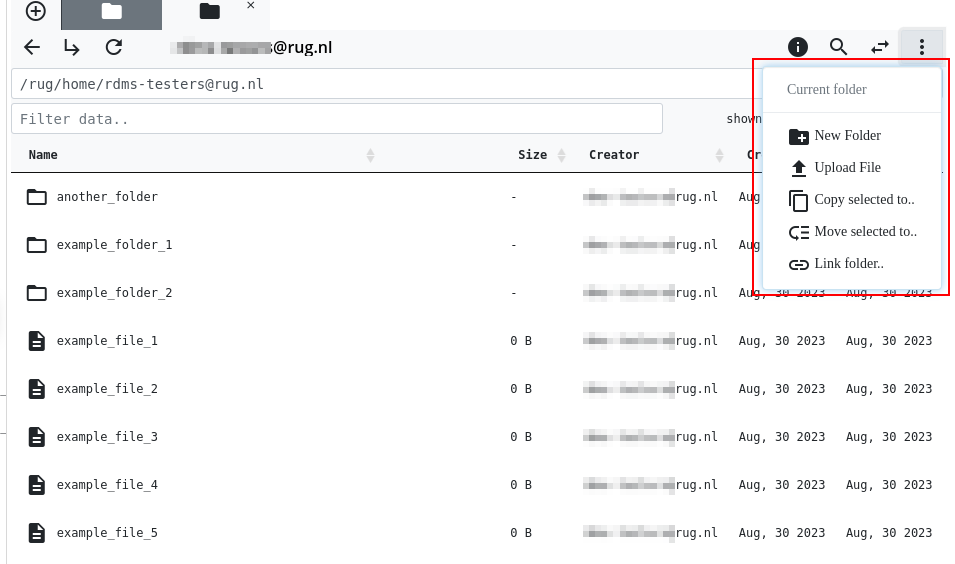
As mentioned above, you can execute different file management tasks directly from the Data Browser. For example, you can use the  button on the top-right corner to reveal a menu that allows you to create new folders, upload files, move data, or link folders:
You can also right-click on a file or folder in your Data Browser to reveal a context menu that allows you to execute more tasks (e.g. assigning permissions on the selected object):
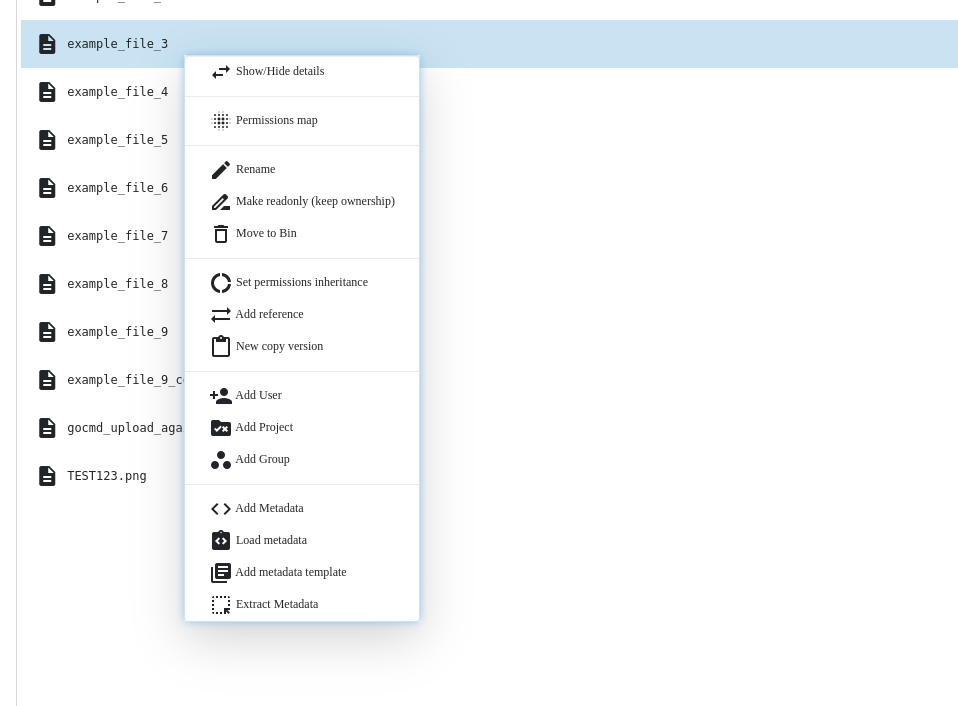
Preview Data
The context menu in the data browser also allows you to preview the content of certain files. So far, the RDMS supports the preview of the following file formats:
| Type | File Extensions | Notes |
|---|---|---|
| Image File | *.apng, *.bmp, *.gif, *.jpg, *.jpeg, *.png, *.svg | Displays preview of the image. |
| Documents | *.pdf | Opens PDF in Browser. Printing/Download is possible from there. |
| Text-based | *.csv, *.html, *.json, *.txt, *.xml | Displays content of text file. Content can be copied from here as well. |
| Other | *.tar | Displays the content of the tar bundle. |
To preview a file, right-click the file and open the context menu. Then select the "Open In…" option from the context menu. The function will present you with different ways to open the respective file. You can choose to preview the file either on the right side of the current data browser window or to use a new browser tab to preview it.
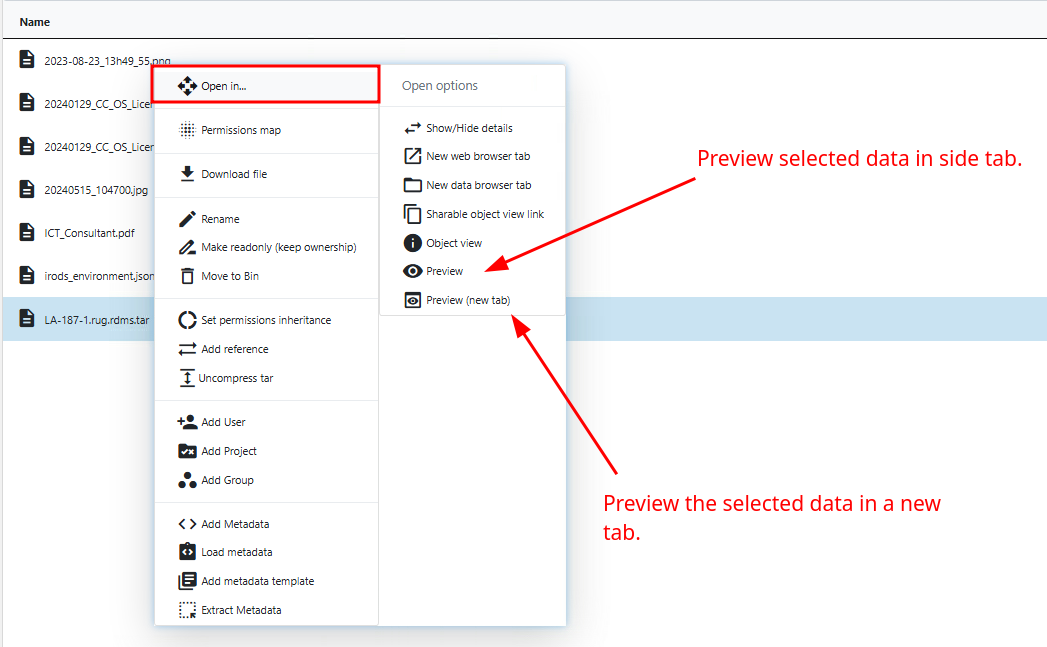
In this example case, we select a tar archive for preview. You can see in the screenshot below that the content of the tar archive is shown on the right side of the data browser.
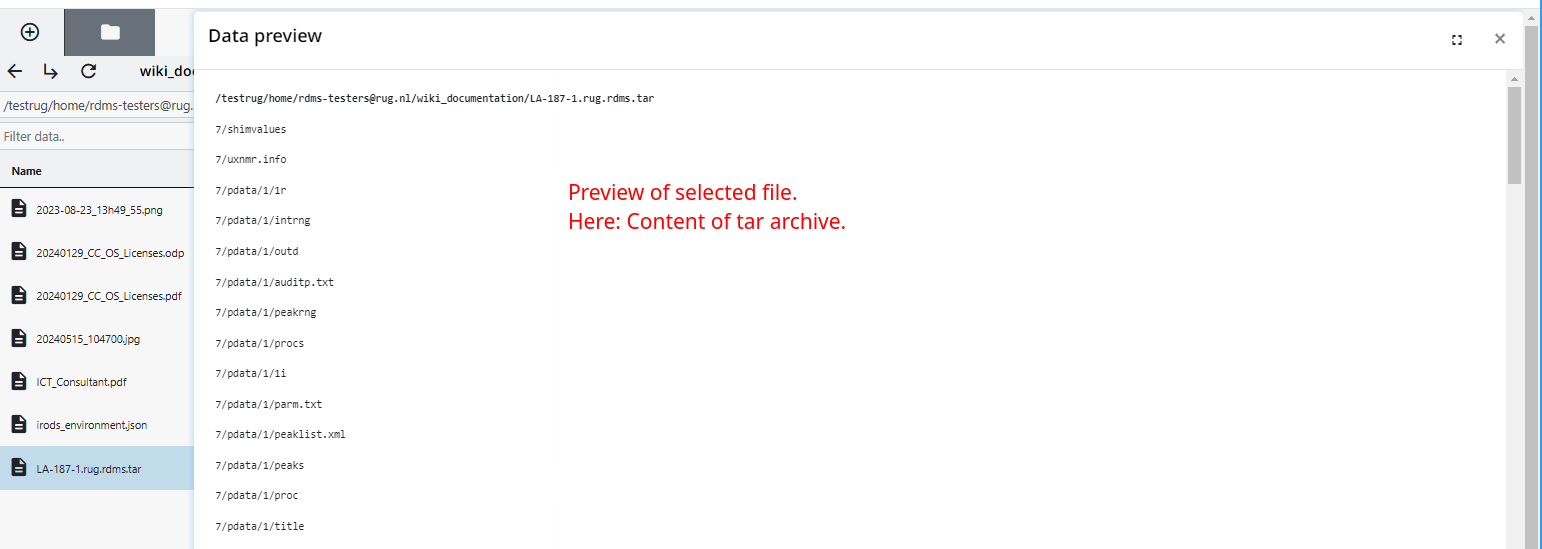
Notes:
- The preview function is limited to files with a maximum size of 500 MB.
- In the future, we will add more data formats that can be previewed. If you need a certain preview function, please contact rdms-support@rug.nl with your request.
Using Hotkeys
Within the Data Browser, different hotkeys are implemented that you can use to execute common data operations in a convenient way.
The hotkeys in the Data Browser are designed to be as close as possible to hotkeys used on other operating systems. As such, the basic hotkey combinations shift + up, shift + down, and shift + click are available to select multiple files or folders. The ctrl + click combination also works like expected from your operating system.
Additional hotkey functions that are currently implemented can be accessed by typing the strings below on your keyboard while in the Data Browser:
dbn: Create a new collection (folder)dbu: Upload a new data object (file)dbm: Move the selected objects or collectionsdbl: Link a collectionctrl + h: Display the help window
Notes:
- The listed hotkeys are only available in the Data Browser, with the exception of the
ctrl + hhotkey combination, which is available in the entire web interface. - For Mac users, the
ctrlkey is replaced by thecommandkey. The hotkeys then function in the same way as described above.
How to Restore Deleted Files
Files in your bin can be restored via the web interface. Click below to reveal the guide showing you how to do so. If you would like to use iCommands to restore files, please navigate to the corresponding command in the How to manage files in the RDMS trash folder section of the wiki.
Note: Please keep in mind that if you wish to permanently delete files stored in your bin, the only way to do so is by using the Command Line Interface (CLI). Look to the section explaining how to use irmtrash on the iCommands page.