This is an old revision of the document!
Security requirements and precautions
IMPORTANT: Please take into account that you can use VeraCrypt yourself up to what we call Lvl 3 Protection without the risk of losing important data or access to your system. As long as you follow the encryption guide provided here and are careful about the things we warn you about, you should not need assistance in setting this up.
From Lvl 4 Protection onwards, we suggest that you talk to someone at the DCC for assistance. These higher levels of protection ensure that your data is harder to find and leaves less traces, but they also carry the risk of losing data by overwriting it or losing access to your operating system, IF THEY ARE SET UP INCORRECTLY. You will also have to be told about clear practices that you need to follow in order to ensure plausible deniability and the best level of protection.
In our consultation with you we have advised you on a level of protection that is ultimately just a suggestion. You can decide to get higher protection for your data, of course. Be aware, once again, that in getting a higher protection level the risk you face shifts from data leakage to actual data loss. We would ask that you follow our guidelines unless you really need a higher level of protection for your data, in which case you should request a follow up consultation with us.
In order for VeraCrypt to provide effective security, the user needs to be aware and follow a number of guidelines that are listed here in short form and in their entirety in the VeraCrypt manual. Please refer to the VeraCrypt manual (pp.90-99 in the pdf or the Security requirements and precautions section of the online documentation) for a more detailed explanation.
Before we go into detail, there are four golden rules you want to follow:
Hereafter are some practical steps you should take to ensure that information on your data or the VeraCrypt volume does not accidentally get left unencrypted.
Windows can store parts of the files in use outside of the RAM memory when the memory does not have enough space. This can lead to unencrypted parts of your data being stored on disk, instead of RAM. To avoid this, please consider disabling paging files for your VeraCrypt volume. This can only be done if you have already created a volume, and will have to be repeated for each new volume created. To learn how to create a volume using VeraCrypt, please refer to this page.
Click to display step-by-step guide
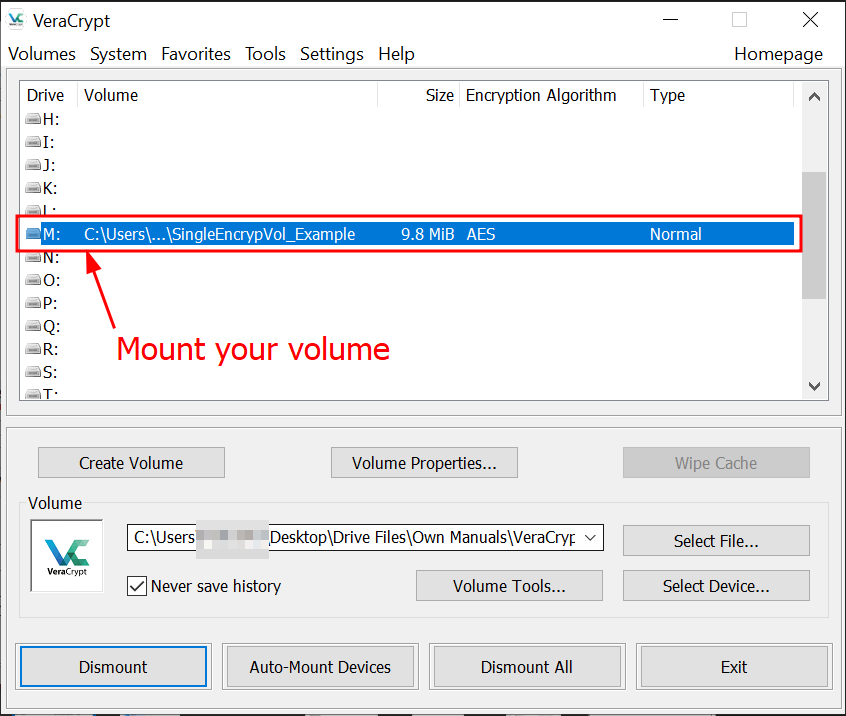
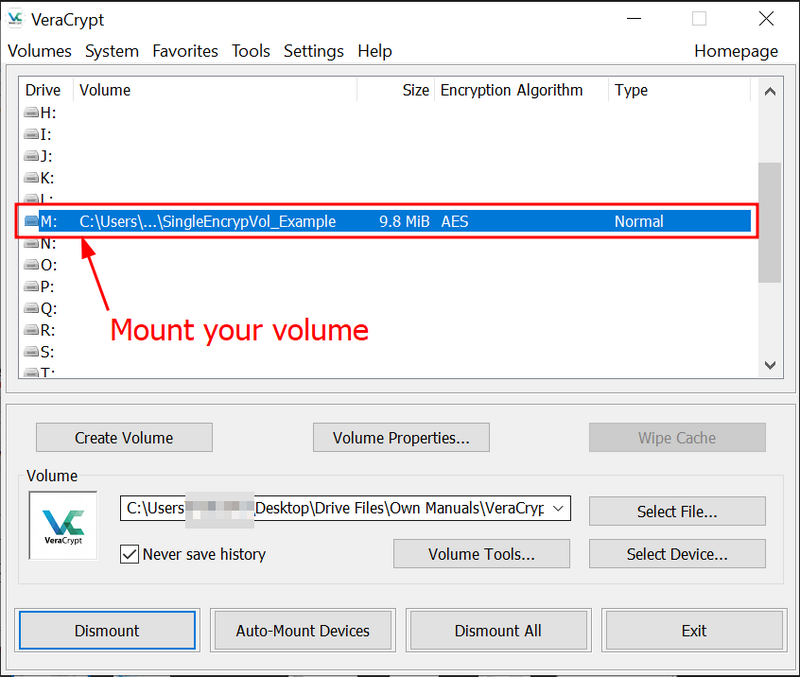
Mount your VeraCrypt volume on an unoccupied drive.
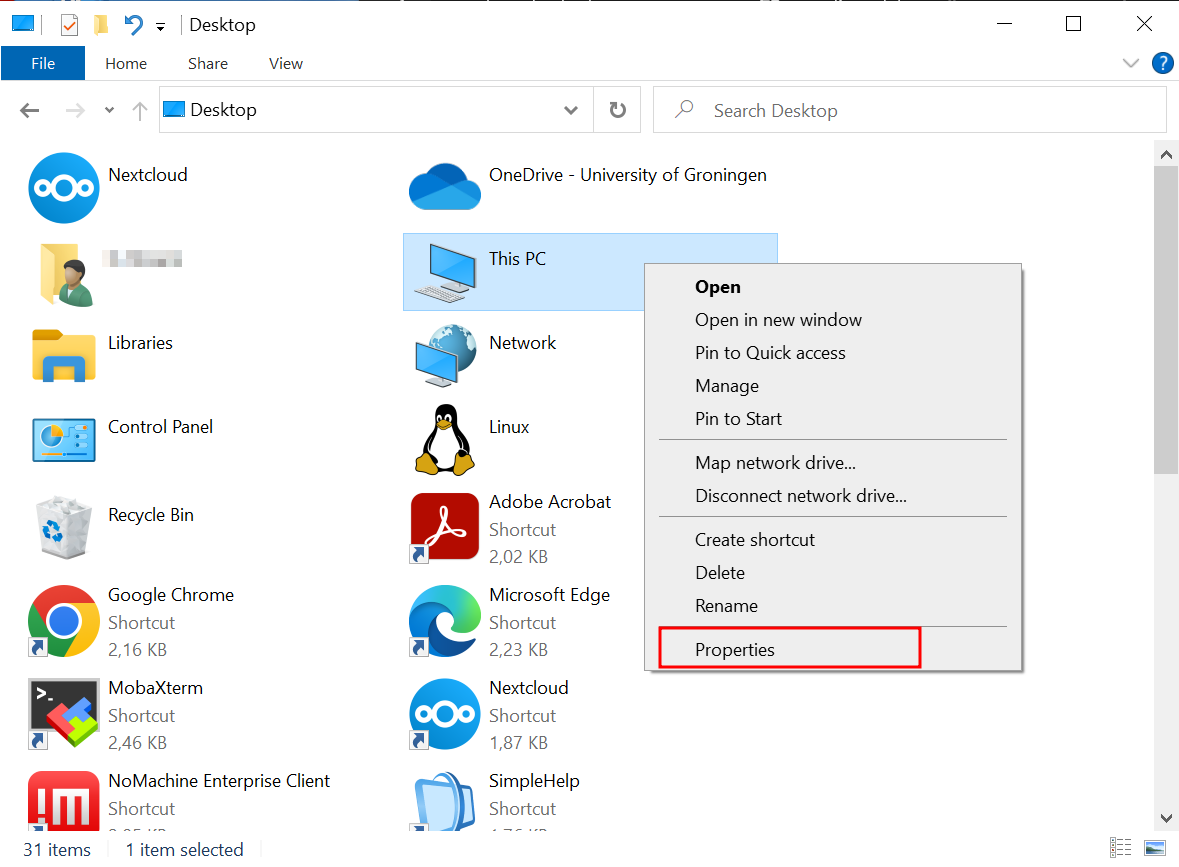
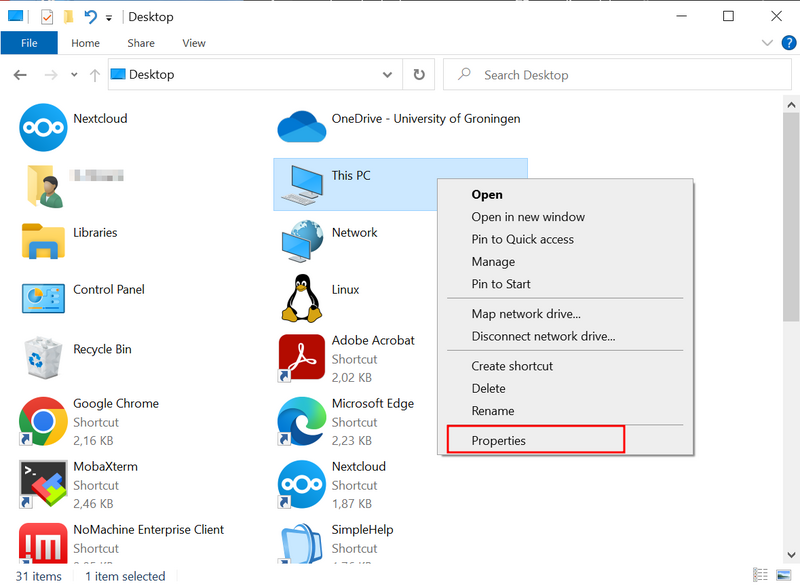
Navigate to the
My Computer/My PC icon, right-click and select
Properties from the drop-down Menu.
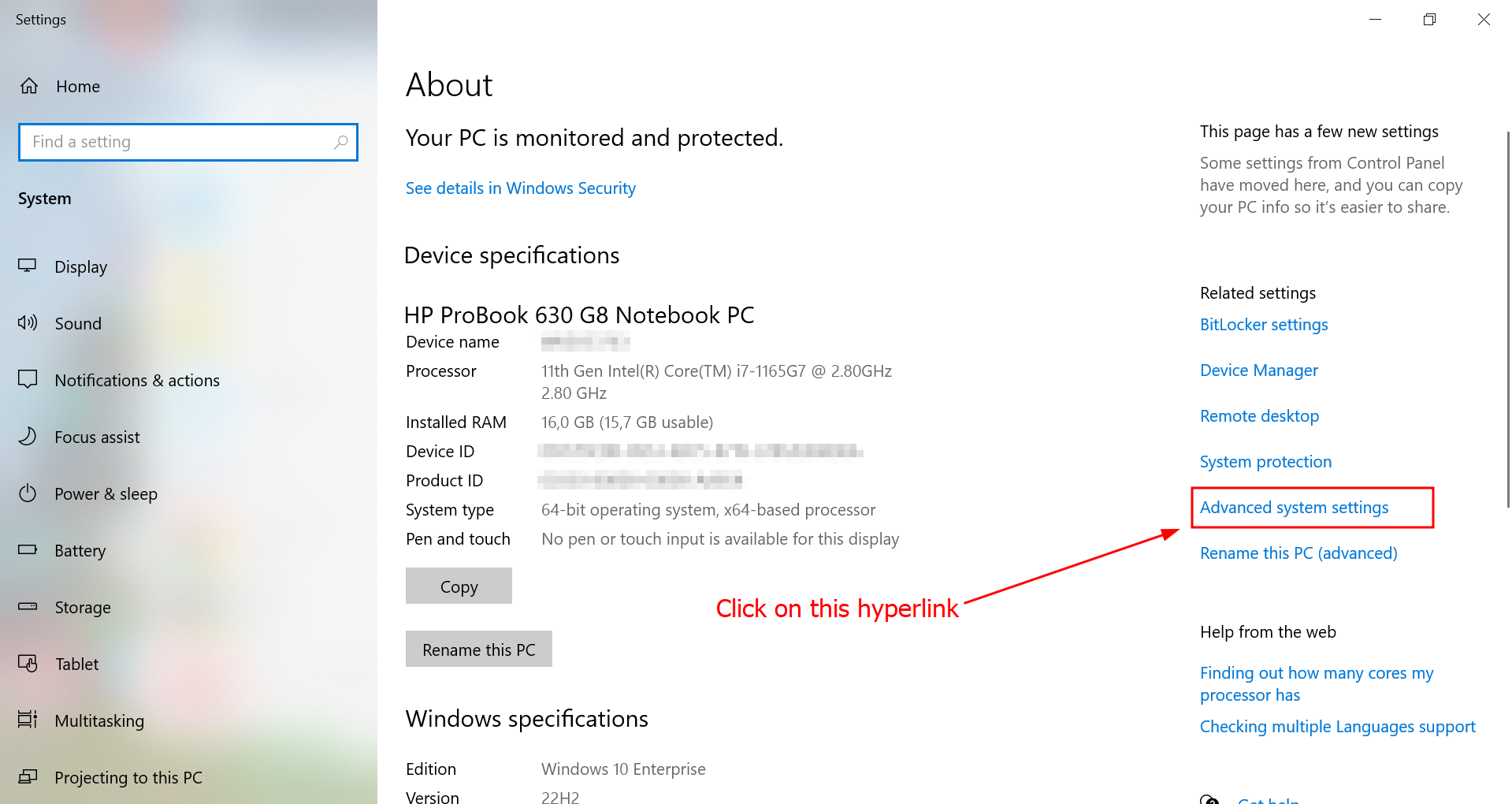
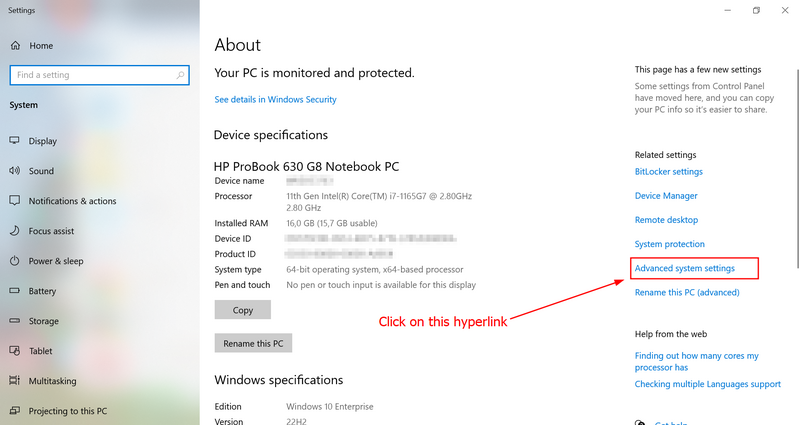
This will open up the
About section of the
Settings Menu. Select
Advanced system settings. Windows will ask you for permission to change system settings. Select
Yes.
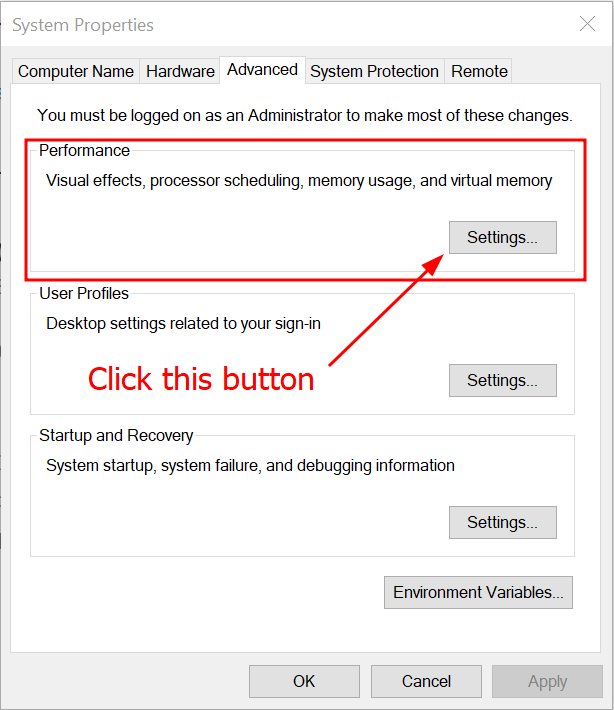
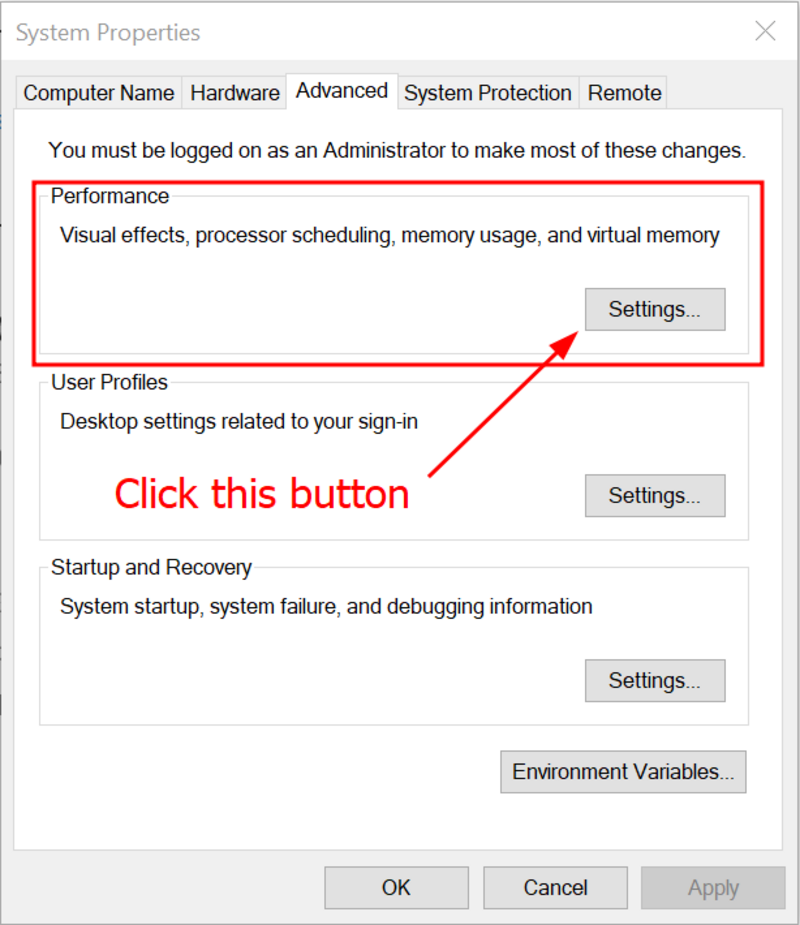
The System Properties window will open on the
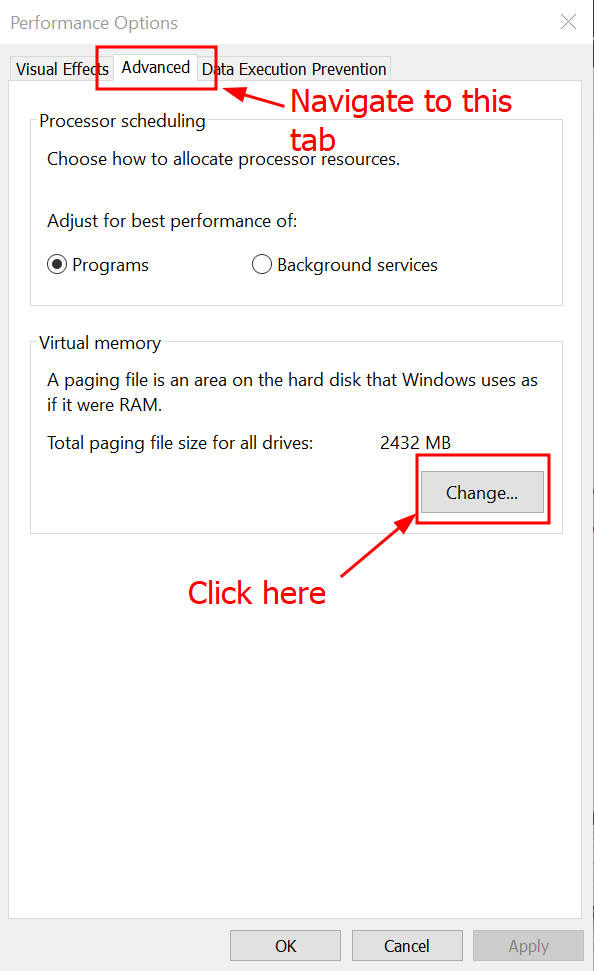
Advanced tab, as shown in the picture. Under
Performance, click the
Settings button.
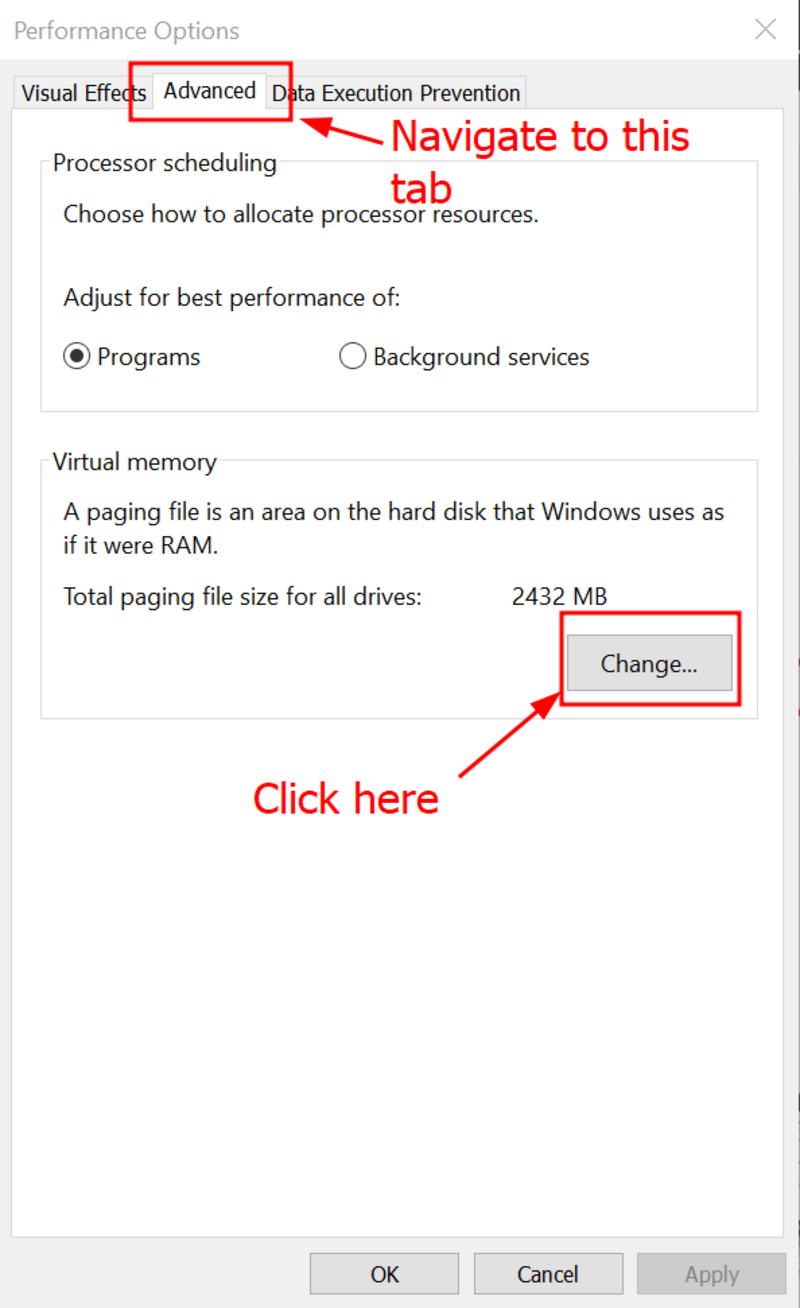
Navigate to the
Advanced tab once again and under
Virtual memory click on the
Change button.
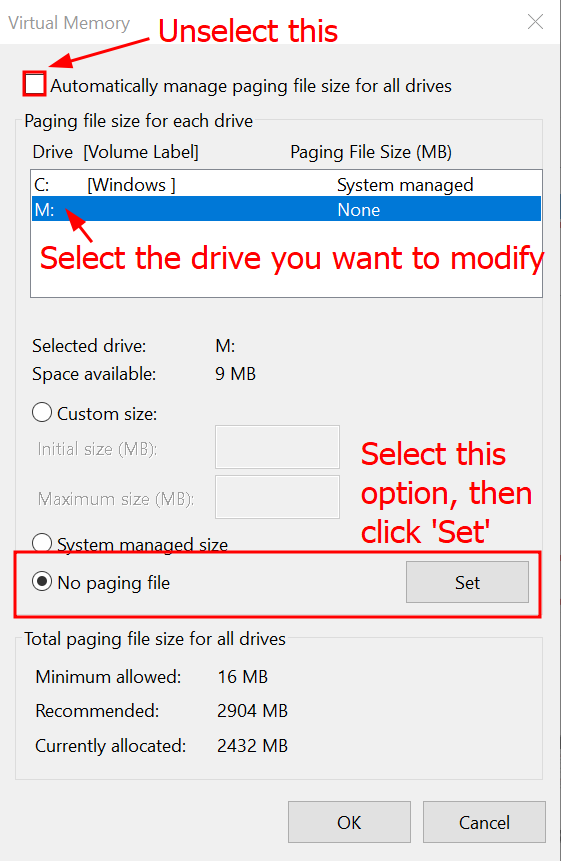
In the
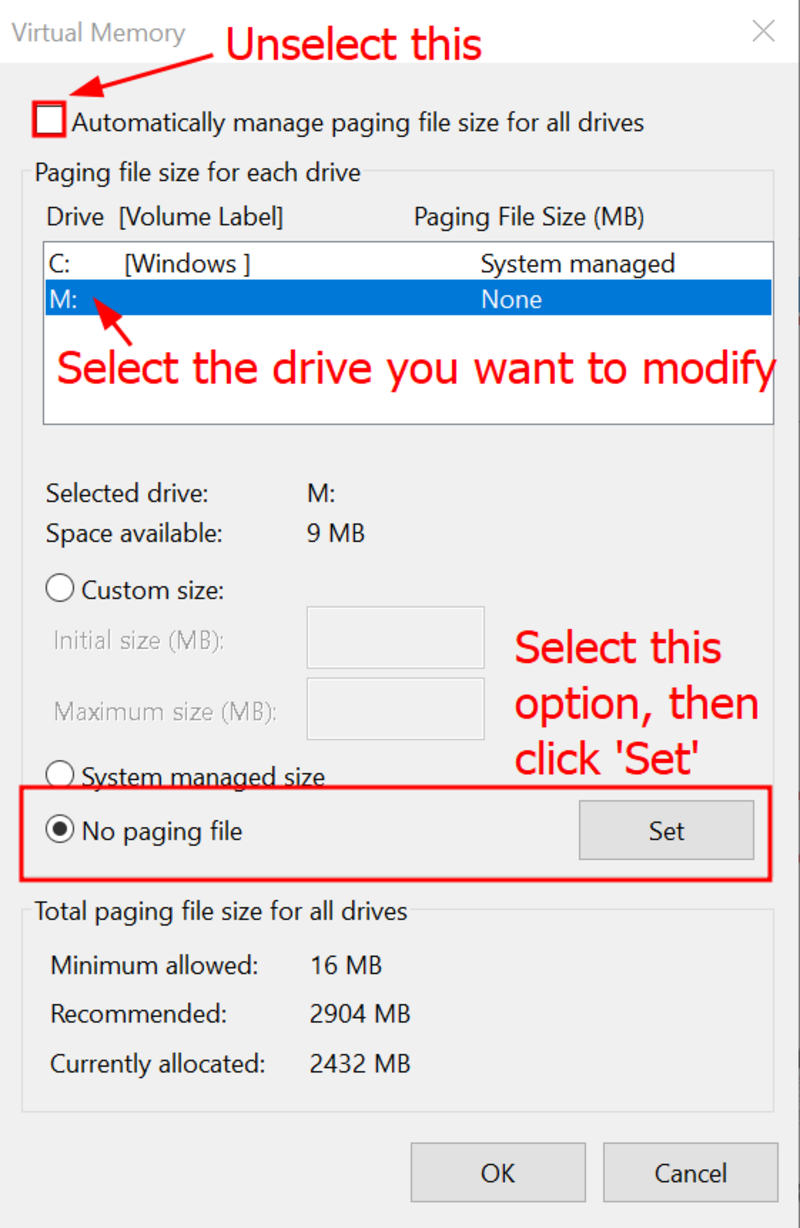
Virtual Memory window, first deselect
Automatically manage paging file size for all drives, then select the drive you mounted the VeraCrypt volume on, select
No paging file and click the
Set button.
Memory dump files are files Windows creates to recover information after an error occurs. Since these files are unencrypted, VeraCrypt information (such as the master key or part of the file stored in the volume) might be recorded in them and stored. To avoid this happening, disable memory dump file generation at least for the session when you use VeraCrypt volumes (even if you just mount them).
Click to display step-by-step guide
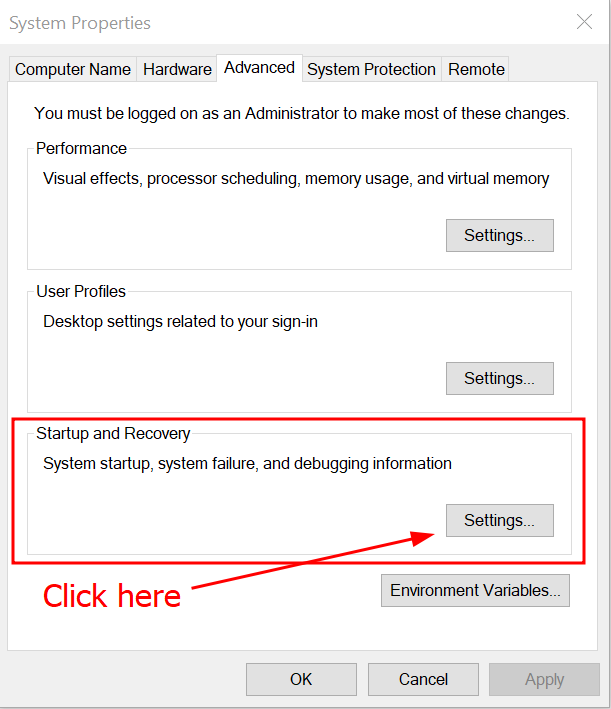
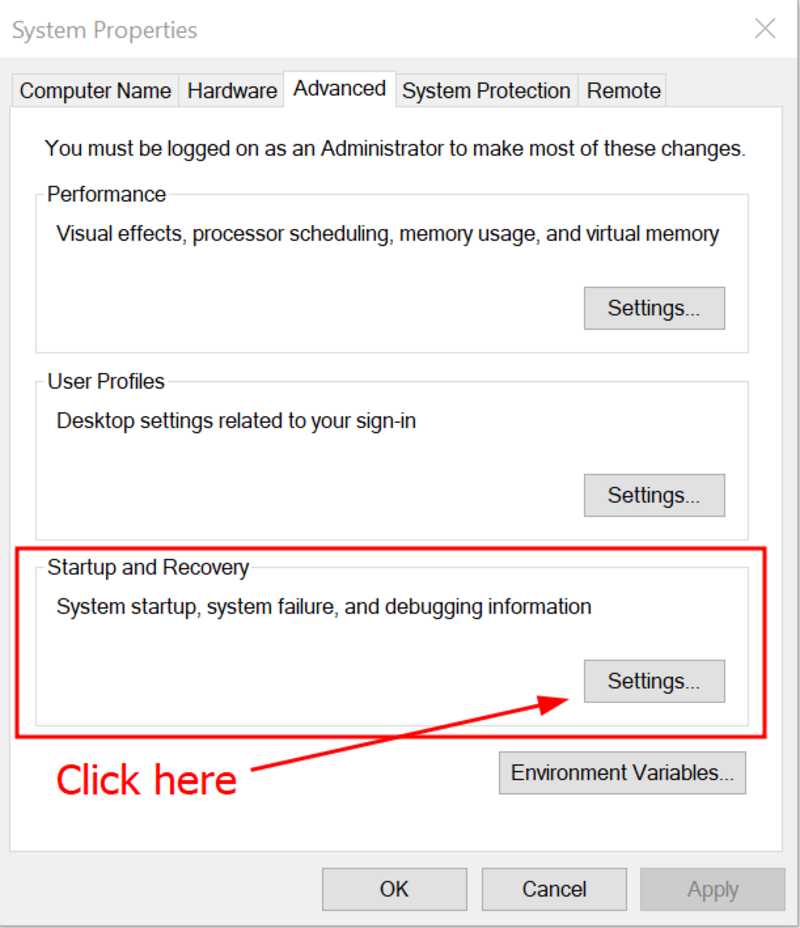
Navigate to the About section of the Settings menu again and select Advanced system settings.
In the
Advanced tab, which opens automatically from the previous step, click the
Settings button in the
Startup and Recovery section.
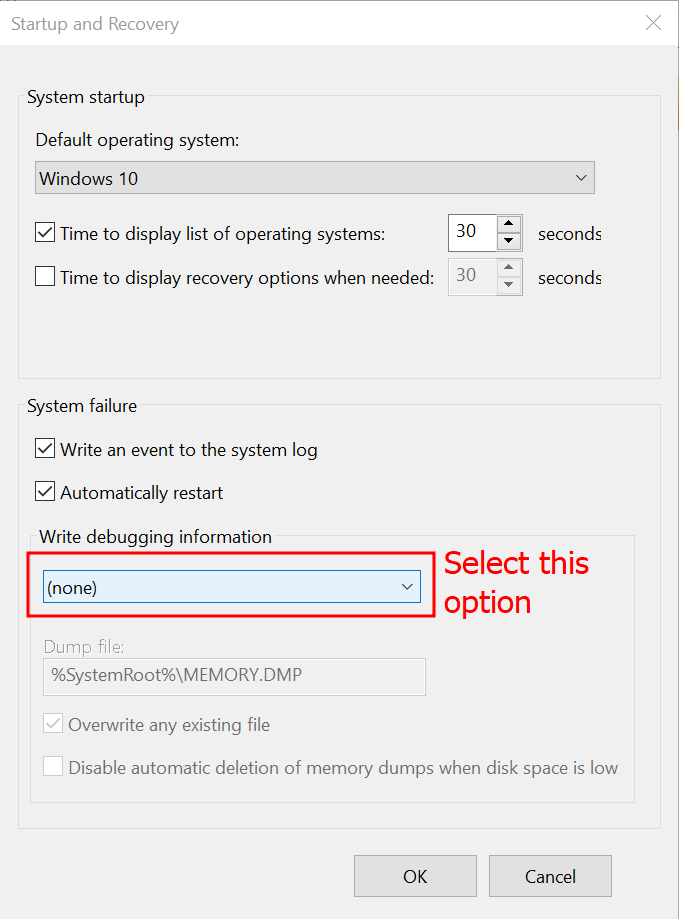
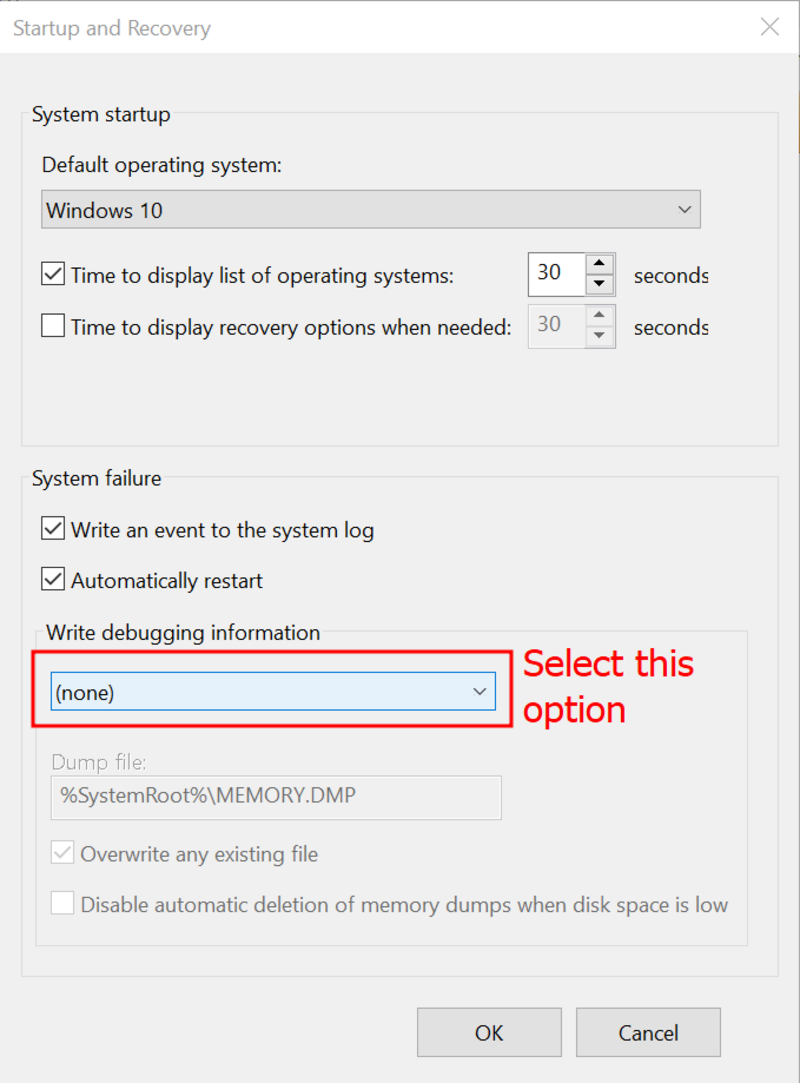
In the resulting window, select
(none) under the
Write debugging information section. Then click
Ok.
Further precautions and best practices to follow
Click to display step-by-step guide
Unless you have encrypted your entire system (which carries its own risks and should not be done on your own) VeraCrypt cannot avoid writing unencrypted information to RAM. This will always carry a risk of data leaks happening if the user doesn’t employ some precautions. The main one being that you DO NOT want to shut down your computer or leave it to hibernate with a VeraCrypt volume still mounted. Make sure that you ALWAYS dismount ALL your VeraCrypt volumes whenever you are done. This allows VeraCrypt to erase information on your Master Keys from RAM. ALSO, make sure that you shut down your computer right after, and LEAVE IT TURNED OFF for a few minutes. This will ensure that no information on your VeraCrypt volume files is retained when turning your machine back on.
VeraCrypt can only secure your volumes/system if
you are the only person able to
physically access your machine. In case someone else has access to your machine, malware or other malicious software capable of recording your passwords might have been installed on it. This also holds true if you have been given a machine by somebody other than the RUG. Should your computer/drive be easily accessible to other people, then we kindly ask you to contact the DCC (
dcc@rug.nl) to discuss strategies on how to ensure that your data remains protected.
Examples of an easily accessible machine are:
You work on a shared workstation that is not specifically yours. Other people will sign into that machine after you leave.
Your computer is provided by an organization you collaborate with and is not your own.
You work in an office with multiple people and cannot lock your machine when you leave the office.
Your machine is constantly connected to an internet connection that is not secure/that might be intercepted by people you don’t want to share your data with.
If your machine is not easily accessible, but you suspect that at some point someone gained access to it and could have compromised it, then VeraCrypt could be entirely unable to secure your data. In that case, please make sure
NOT TO MOUNT AND WORK with a VeraCrypt volume until you have contacted the DCC (
dcc@rug.nl).
The same goes if you suspect that your machine might have been infected by malware. Keep in mind that making sure your machine is up-to-date is a good way to reduce the chance of malware infection.
When choosing a password, make sure that you choose a strong one. VeraCrypt details what a strong password is, both when prompting you to choose it and in its manual. In short, choose a sequence of words, rather than a single word, use both upper and lower case and special characters. Your password should at least be 20 characters long. (Example: Song lyrics are a good inspiration if you don’t know where to start).
Changing password and keyfile(s) does not change the masterkey of the encryption. The masterkey is an element of your volume’s header that ensures the correct interpretation of the encrypted data in combination with your password and keyfiles. Should you suspect that someone gained access to your password(s) or keyfile(s),
changing password will not protect your data if they gained access to the masterkey. In short, having access to the masterkey is already enough to ensure decryption by brute force methods. In such a case we ask you to
disconnect your machine or your VeraCrypt volume(s) from any point of access (internet access, USB drives, or other) and to
please contact the DCC (dcc@rug.nl) immediately.
Should you be working on a machine where you DO NOT have administrator privileges, we advise you to not use VeraCrypt on it. Find a machine where you are administrator and use that machine. This is because the administrator of a machine you are using might be able to see what you used or what you did with VeraCrypt. They might not have access to your data, but can potentially log your activity.
If you are using keyfiles, you can store them in single copy on a separate device (e.g. a USB stick) for an added layer of security. Please keep in mind that if you lose the USB stick, you lose access to your data. We then advise you to have a second back-up USB stick containing the keyfiles for such emergencies. Also, if you have lost the USB stick, your keyfiles need to be changed. Please contact the DCC for this.
Should you have any other questions regarding possible risks of data loss or weaknesses in VeraCrypt security, please contact the DCC (dcc@rug.nl). We will be glad to address your concerns.
→ Move to the next step