Table of Contents
Permissions and Inheritance
With the current version of iRODS, ten levels of permissions on data and metadata are available to the user. These permissions are either automatically assigned when a file or folder enters the RDMS, or they can be defined by the user(s). In an order of ascending privileges, these permissions are 'Null', 'Read_Metadata', 'Read_Object', 'Create_Metadata', 'Modify_Metadata', 'Delete_Metadata', 'Create_Object', 'Modify_Object', 'Delete_Object', and 'Own'. You can set these permissions either by using the ichmod command in the Command Line Interface (CLI), or by using the web interface.
Please see the following table for a summary of what these different permissions allow within the RDMS. We marked the previous permission scheme (before the iRODS update) in parentheses:
| Metadata | Data | ||||||||
|---|---|---|---|---|---|---|---|---|---|
| Permission Level | Read | Create | Modify | Delete | Read | Create | Modify | Delete | Share |
| Null (Null) |  | | | | | | | | |
| Read_Object (Read) |  | | | | | | | | |
| Create_Metadata | | | | | | | | | |
| Modify_Metadata | | | | | | | | | |
| Delete_Metadata | | | | | | | | | |
| Modify_Object (Write) | | | | | | | | | |
| Delete_Object | | | | | | | | | |
| Own (Own) | | | | | | | | | |
Note: The table does not contain Read_Metadata and Create_Object, as these permissions are currently causing unexpected behaviour in the system. We advise not to use them. Please also note that Create_Metadata and Modify_Metadata are currently the same permission, effectively.
Finally, find below a brief explanation of what the permissions mean and how they are linked to the old set of permissions.
- Null: The user has no permissions on the object or metadata. The object is invisible to the user. You can use this permission to remove previously granted permissions on data and metadata.
- Read_Object: The user can display the data object and the metadata attached to it. The user can also download the data object from the RDMS. This level of permission corresponds to the old READ permission.
- Create_Metadata: The user has the same permissions as the permission level above, but can also create new metadata entries for the data object. Existing metadata cannot be modified.
- Modify_Metadata: The user has the same permissions as the permission level above, but can now modify existing metadata entries. The user may not delete any metadata entry attached to the data object.
- Delete_Metadata: The user has the same permissions as the permission level above, but can now delete metadata entries.
- Modify_Object: The user has the same permissions as the permission level above, but can now modify the data object itself. This level of permission corresponds to the old READ/WRITE permission. With this level of permission, you can upload a new version of the data and modify it, but you cannot delete it or rename it.
- Delete_Object: The user has the same permissions as the permission level above, but can now delete and rename objects. As the sharing of data or setting permissions requires ownership of the data, these are actions not available to the user. Please note here that some actions related to deleting the data still require higher permission to be executed. We advise setting own permission on files that need/can to be deleted by another user.
- Own: The user owns the data object (file) or the collection (folder) and has full permission on reading, modifying (including deletion), and sharing. This permission is assigned automatically to a file a user uploads into their RDMS Home Drive, for example.
Important Note
- If you remove your own permissions, you will no longer be able to restore them even if you were the original owner of the object. This worked in previous versions of iRODS, but was removed in later updates.
- While 'write' permissions allow the creation of new objects and the modification of existing ones, it does not allow for the deletion of objects nor the renaming of them. The reason why renaming is blocked for the write permission is that iRODS handles renaming as creating a new object with the new name and deleting the old object. As such, renaming is a sort of deletion.
Permission Inheritance
Permission inheritance means that the permissions set on a folder are also propagated to its subfolders and files. If permission inheritance is activated, newly created files and folders inherit the permission of the main folder.
By default, permission inheritance is active within the RDMS for RDMS Team Drives and RDMS Projects, but it can also be disabled by the user. To do so, you need to right-click the folder where you would like to turn permission inheritance off and select the highlighted menu item:
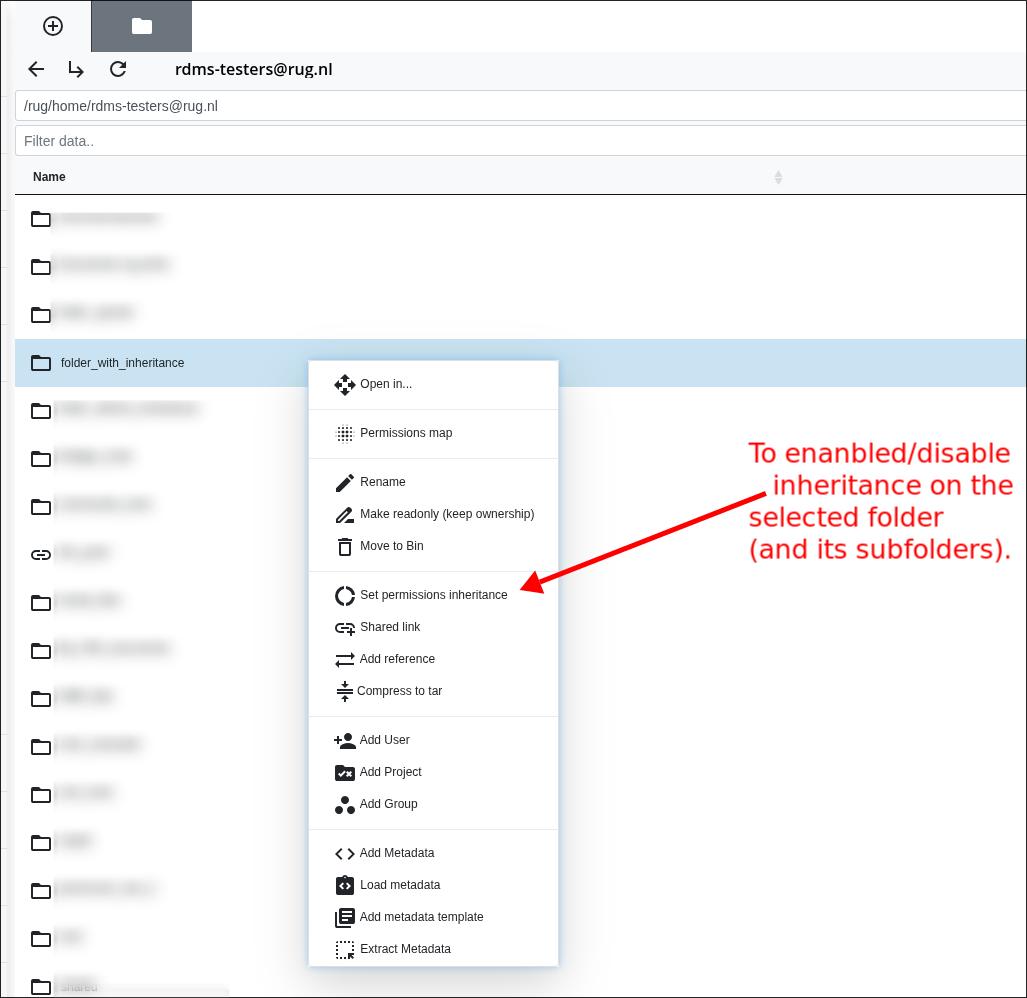
If you decide to disable permission inheritance, you will have to manually set the permissions on all (sub)folders and files contained in the folder where permission inheritance is turned off.
Please note that you can modify user permissions on specific subfolders or files even when permission inheritance is activated on the main folder. Having permission inheritance activated is meant to help you by automatically setting the permissions of new files and folders. It does not prevent you from changing them afterwards, should you need different permissions on specific files or folders.
Important Note: The RDMS considers a file or folder new if you upload it to the RDMS or if you copy it from an existing RDMS location. A file or folder is not considered new if you move it from an existing RDMS location. In this second case, you will need to manually modify the permissions on the file or folder. We recommend you verify the permissions assigned to a file or folder after you moved it to a new location, regardless of whether permission inheritance is enabled or disabled.
To display things more easily, we decided to use the CLI client iCommands in the examples below. Please note that the behavior of the RDMS regarding permission inheritance is the same if the user uploads their data another way (e.g. Cyberduck or WinSCP). If you use Cyberduck or WinSCP to upload data to the RDMS, you can check or adjust permission inheritance either via iCommands or via the RDMS web interface.
# This is the folder with enabled inheritance that we use as destination. Note the permissions set on this folder (the part after 'ACL').
$ ils -A /rug/home/Test_Team/folder_with_inheritance
        ACL - teamdrive-owner@rug.nl#rug:own   rdms-testers@rug.nl#rug:modify_object   g:Test_Team#rug:modify_object
        Inheritance - Enabled

# First, we we will show what happens if we copy the folder to the destination with enabled inheritance.
$ icp -r folder_test /rug/home/Test_Team/folder_with_inheritance

# Checking the permission shows that the permission of the parent folder are applied/inherited. Reason: Copy counts as new
data --> Inheritance is applied.
$ ils -A /rug/home/Test_Team/folder_with_inheritance/folder_test
/rug/home/Test_Team/folder_with_inheritance/folder_test:
        ACL - teamdrive-owner@rug.nl#rug:own   rdms-testers@rug.nl#rug:modify_object   g:Test_Team#rug:modify_object
        Inheritance - Enabled

# Now, we look at the permission of the second folder that we want to copy/move to show the effect of inheritance.
# In this case, it is only a single user (rdms-testers@rug.nl) who has 'own' access on the folder
$  ils -A folder_test
/rug/home/rdms-testers@rug.nl/folder_test:
        ACL - rdms-testers@rug.nl#rug:own
        Inheritance - Disabled

# The folder is now moved to a RDMS destination with permission inheritance enabled.
$  imv folder_test /rug/home/Test_Team/folder_with_inheritance

# We check now the permissions again. Even with enabled inheritance, the permissions of the original folder are kept. Reason: Moving data does not count as new data --> Inheritance is not applied. Note that only rdms-testers@rug.nl has own permission. These are the original permissions before the move!
$ ils -A /rug/home/Test_Team/folder_with_inheritance/folder_test
/rug/home/Test_Team/folder_with_inheritance/folder_test:
        ACL - rdms-testers@rug.nl#rug:own
        Inheritance - Disabled
In order to make this concept clearer, we are going to describe two examples and show what happens when permission inheritance are either turned on or off. We also point out when enabling or disabling permission inheritance can be advantageous. Please bear in mind that we will be considering a basic set up, but that for more complex cases the effect of permission inheritance might not be immediately straightforward.
Example: Permission Inheritance - Enabled
In this example, we show what happens when the user rdms-testers@rug.nl uploads new data to a Team Drive. The user has 'write' permissions in the Team Drive and permission inheritance is enabled. The user is uploading the new file test.txt from their local system to the RDMS Team Drive folder.
# In this case, the folder has inheritance enabled.
# The 'rdms-testers@rug.nl' user has write (modify_object) permissions.
# Please look to the 'ACL' entry to see which permission 'rdms-testers' has in this folder.
$ ils -A /rug/home/Test_Team/folder_with_inheritance
/rug/home/Test_Team/folder_with_inheritance:
        ACL - teamdrive-owner@rug.nl#rug:own rdms-testers@rug.nl#rug:modify_object   g:Test_Team#rug:modify_object
        Inheritance - Enabled

# The 'rdms-testers@rug.nl' user uploads a new file from the local system to the RDMS folder.
$ iput test.txt /rug/home/Test_Team/folder_with_inheritance

# See the 'ACL' entry to verify the permission level of 'rdms-testers'.
# Permissions on the newly uploaded file show that it inherited the permission from the parent collection automatically.
$ ils -A /rug/home/Test_Team/folder_with_inheritance/test.txt
  /rug/home/Test_Team/folder_with_inheritance/test.txt
        ACL - teamdrive-owner@rug.nl#rug:own   rdms-testers@rug.nl#rug:modify_object   g:Test_Team#rug:modify_object
As you can see above, the newly uploaded file now has exactly the same permissions as the Team Drive folder it was uploaded to. In this case, rdms-testers@rug.nl has 'write' permission, while the owner of the team drive still has 'own' permission on the file. If inheritance had been turned off, only rdms-testers@rug.nl would have had 'own' permission on the file. The other users in the Team Drive would not even see the file being uploaded, as they would not have any kind of permission on it.
Note: A good reason to have permission inheritance enabled in a Team Drive is to make sure that all new data is provided with the correct permissions, no matter who does the upload. It also makes sure that data does not remain 'invisible' for certain users in a Team Drive simply because the permissions on it were not updated after the upload.
Example: Permission Inheritance - Disabled
In this other example, we now assume that permission inheritance is disabled. The user rdms-testers@rug.nl uploads a new file test.txt to a RDMS Team Drive folder. The only difference in this case from the example above is that permission inheritance is disabled for the destination folder. The permissions on the Team Drive folder are exactly the same as before.
# In this case, the folder has inheritance disabled.
# The 'rdms-testers@rug.nl' user has write (modify_object) permissions.
# Please look to the 'ACL' entry to see which permission 'rdms-testers' has in this folder.
$ ils -A /rug/home/Test_Team/folder_without_inheritance
/rug/home/Test_Team/folder_without_inheritance:
        ACL - teamdrive-owner@rug.nl#rug:own   rdms-testers@rug.nl#rug:modify_object   g:Test_Team#rug:modify_object
        Inheritance - Disabled

# The 'rdms-testers@rug.nl' user uploads a new file from the local system to the RDMS folder.
$ iput test.txt /rug/home/Test_Team/folder_without_inheritance

# See the 'ACL' entry to verify the permission level of 'rdms-testers'.
# Permissions on the newly uploaded file show that it only has one permission: 'own' for the uploading user (creator).
$ ils -A /rug/home/Test_Team/folder_without_inheritance/test.txt
  /rug/home/Test_Team/folder_without_inheritance/test.txt
        ACL - rdms-testers@rug.nl#rug:own
As you can see, the uploaded file now has only a single permission: Ownership for the creator (uploader), so 'own' for rdms-testers@rug.nl. There are no permissions for the team drive owner in this case. The file will be not accessible or even visible for this user. This means that rdms-testers will need to set the permission manually to the desired value, if they want the Team Drive owner to also see and/or modify the file.
Note: A good reason to have permission inheritance disabled in the top-level of a Team Drive is to allow for easy permission management when the permissions are not the same in all Team Drive locations. For instance, if User 1 should only have permissions in Folder 1 and User 2 should only have permissions in Folder 2, with permission inheritance disabled, you can then simply add the Users without having to remove other Users first when creating new folders. Permission inheritance can then be enabled again inside Folder 1 and Folder 2, to help keep track of the right permissions.